RC Wallet

RC Wallet Basics

Learn how to manage your assets, switch networks, and view important wallet information.

How to send crypto assets

A gas fee is always required when sending crypto assets. Please prepare enough gas tokens according to the network you are using.

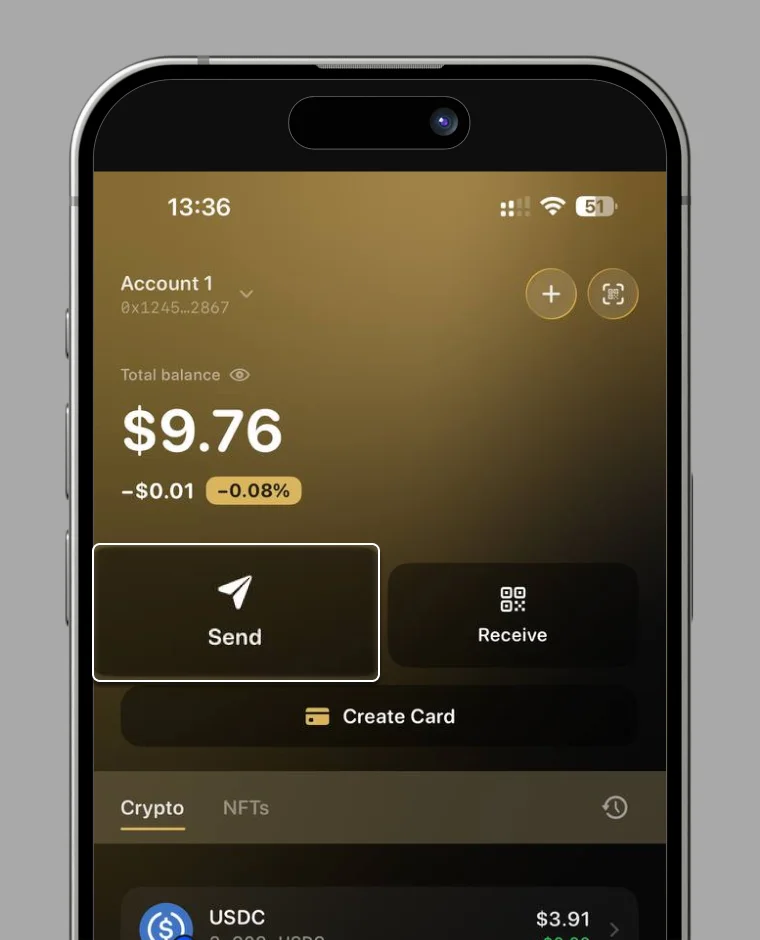
① Switch to the network you want to use ② Tap “Send”

Send step 1

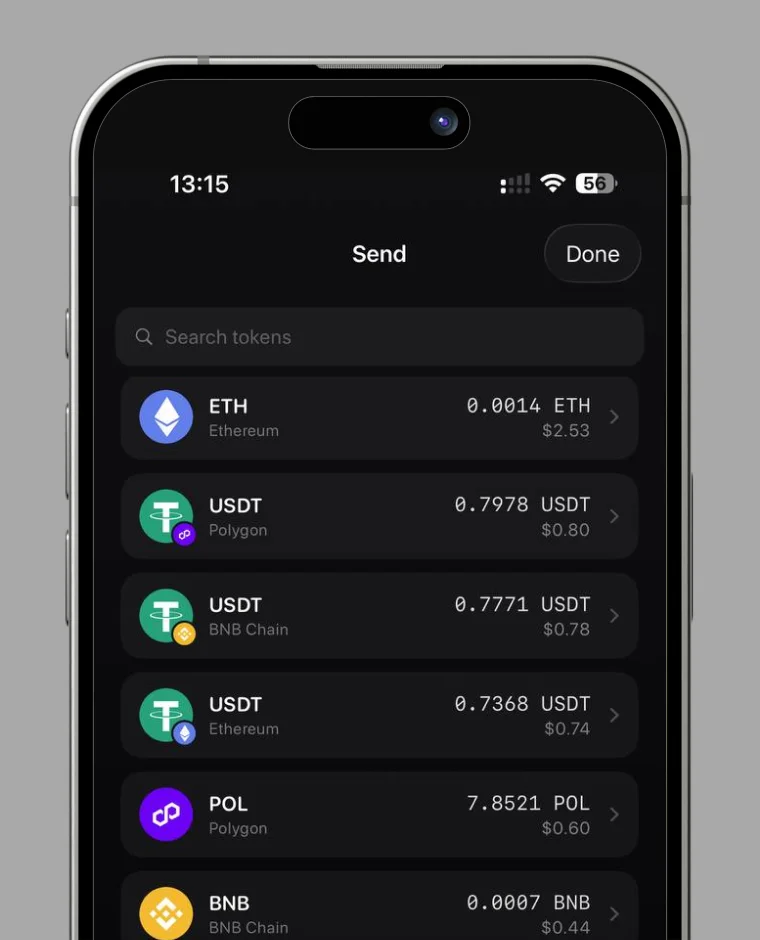
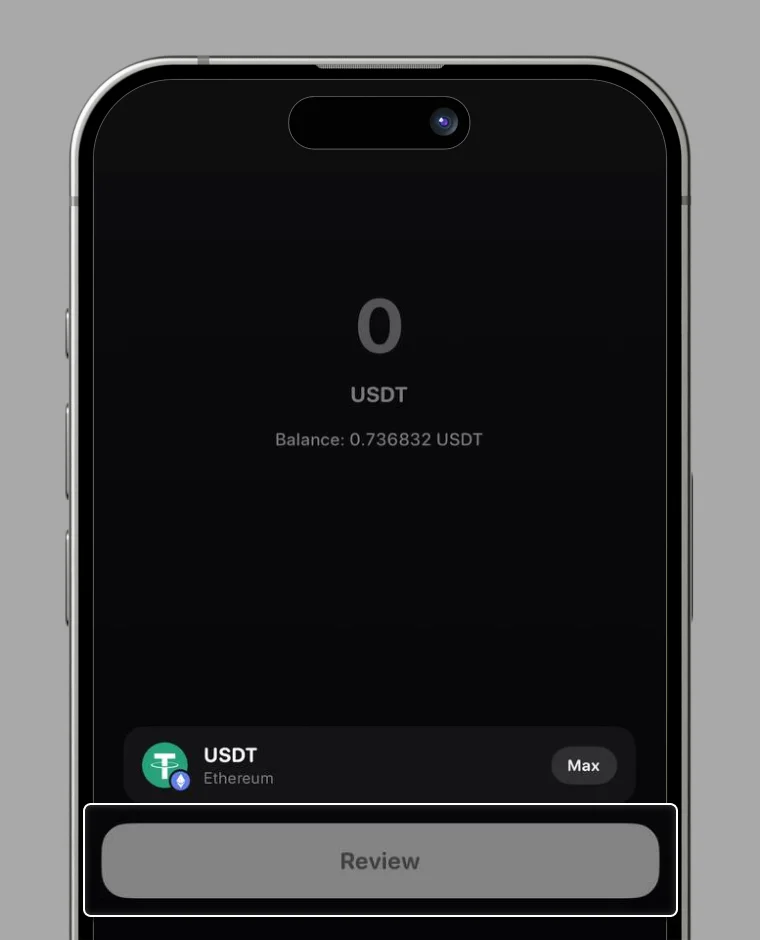
① Enter the recipient’s wallet address. You can also use a QR code or select from your past history. ② Select the token you want to send. ③ Enter the amount to send ④ Tap “Next step”

Send step 2

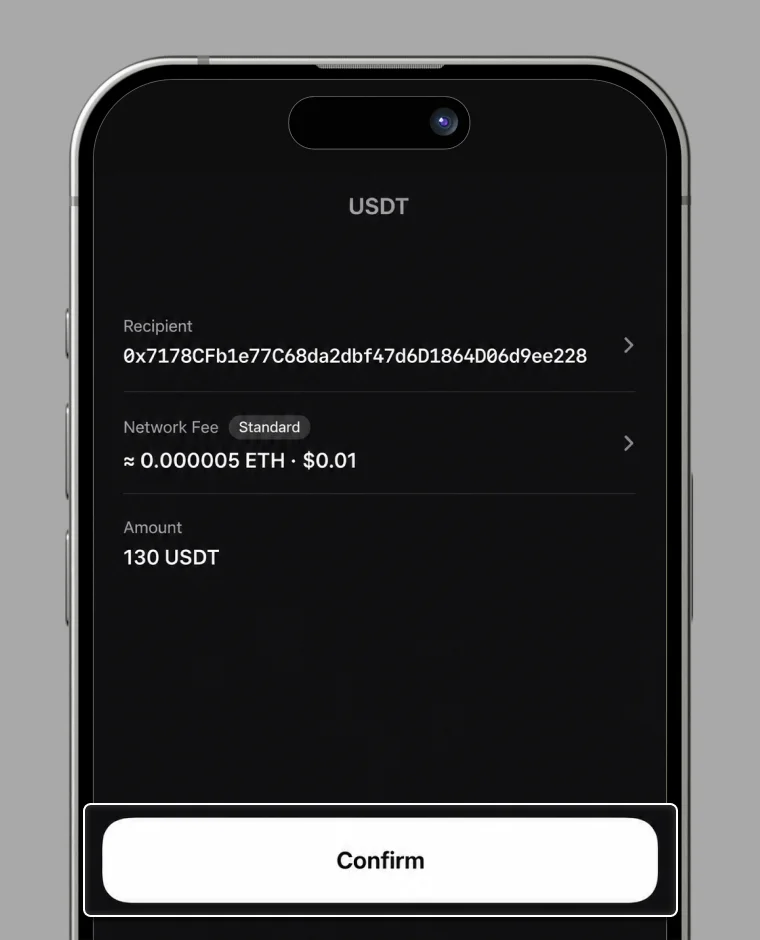
Set gas and tap “Confirm”

Set the gas options and tap “Confirm”. In RC Wallet, you can choose between two gas fee options: Normal and Fast. If you want to keep gas fees low, select “Normal”. If the network is congested or you want the transfer to complete quickly, select “Fast”. Do not change the gas price, gas limit, or gas fee values yourself.

Send step 3

Check the details and “Swipe to send”

Send step 4

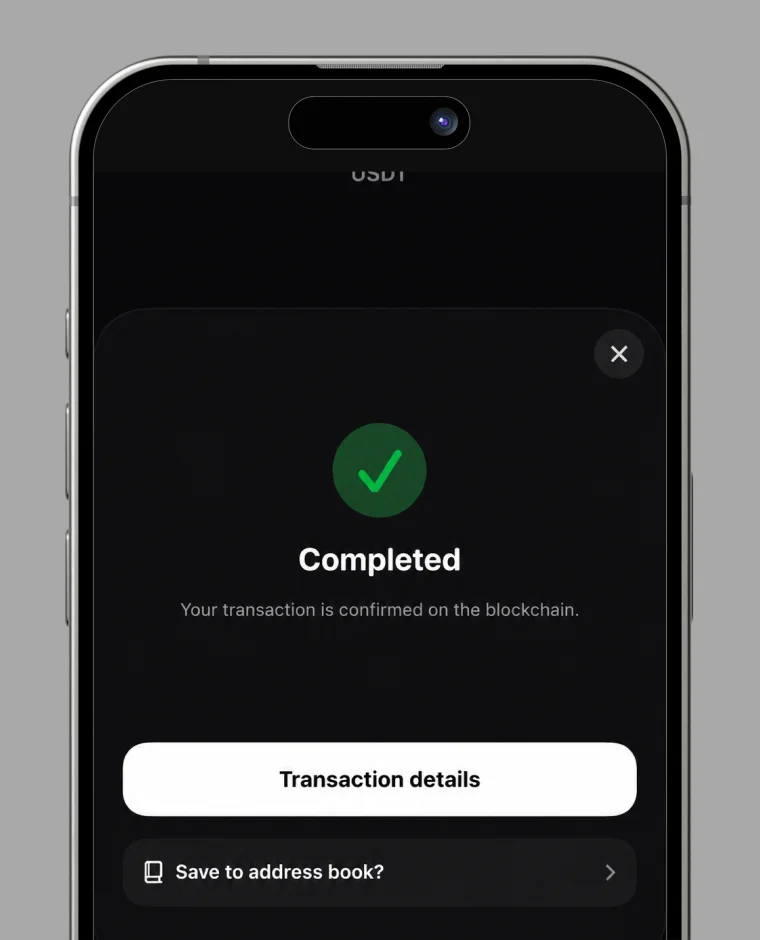
When the confirmation screen is displayed, the change is complete.

Send step 5

How to change network

Tap the top-right of the screen

Tap the network name at the top-right of the home screen and select the network you want to use. RC Wallet currently supports the following networks: • POL • ETH • BSC

Change network

How to check your wallet address

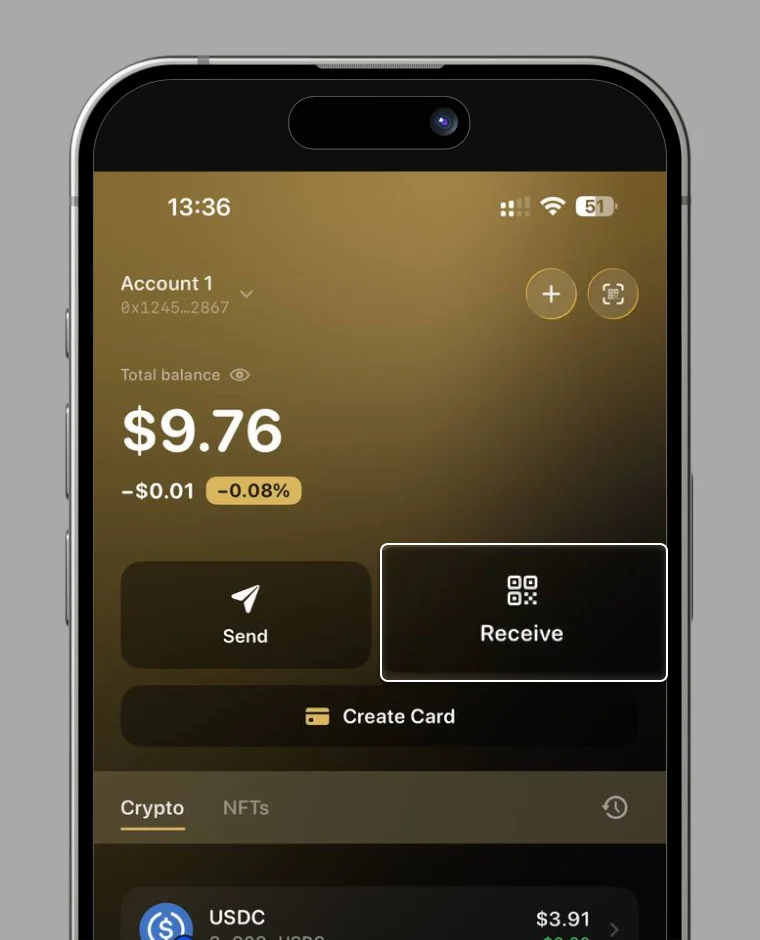
Tap “Receive”

Receive – step 1

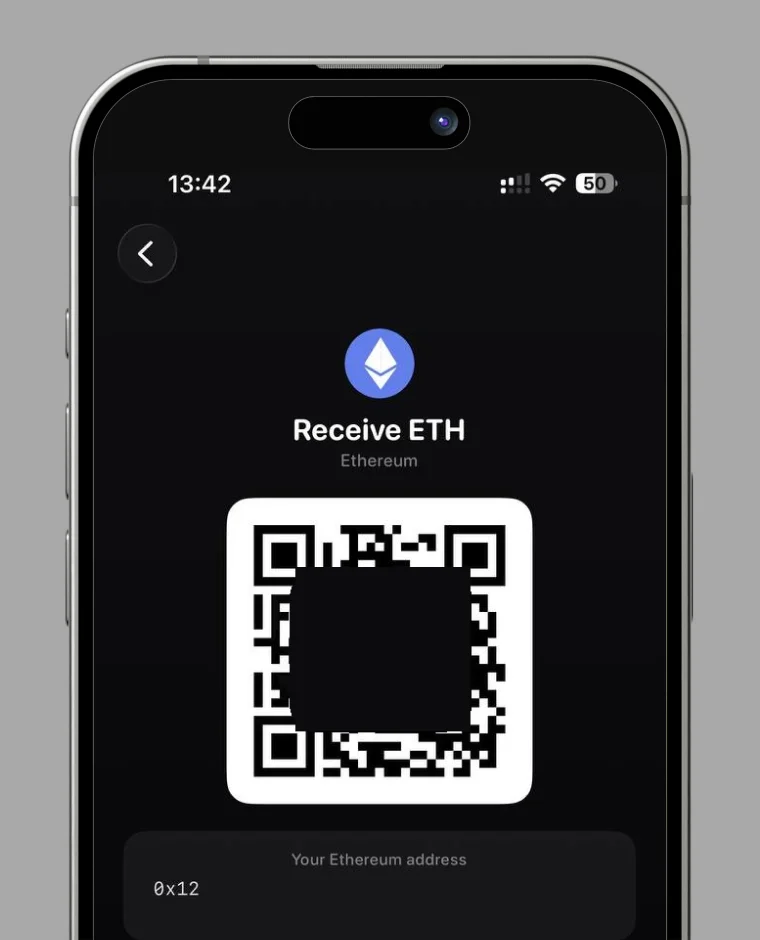
Your wallet address is displayed

You can see your own wallet address. Tap “Copy” to copy the address.

Receive – step 2

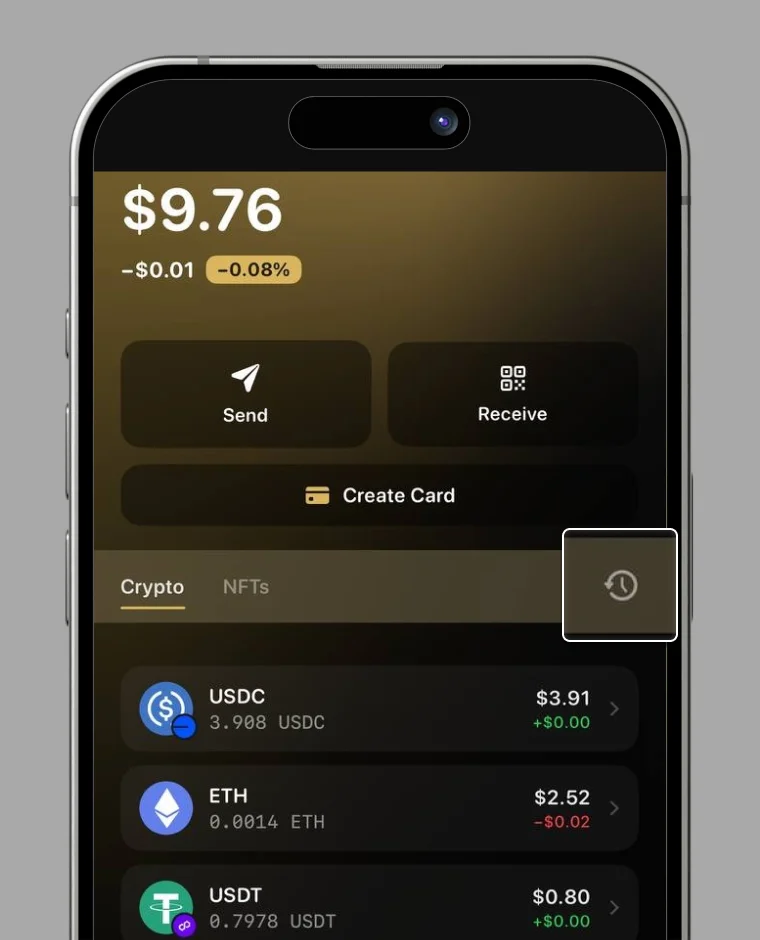
How to check wallet balance

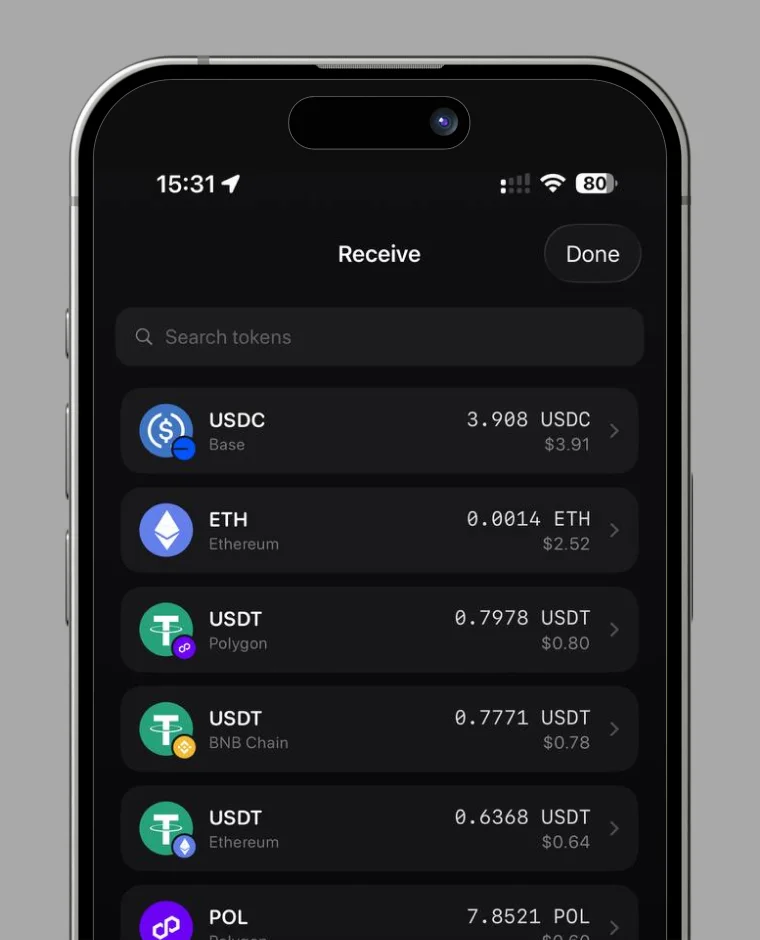
Select the wallet

Wallet balance step 1

You can see the amount of tokens you hold

Wallet balance step 2

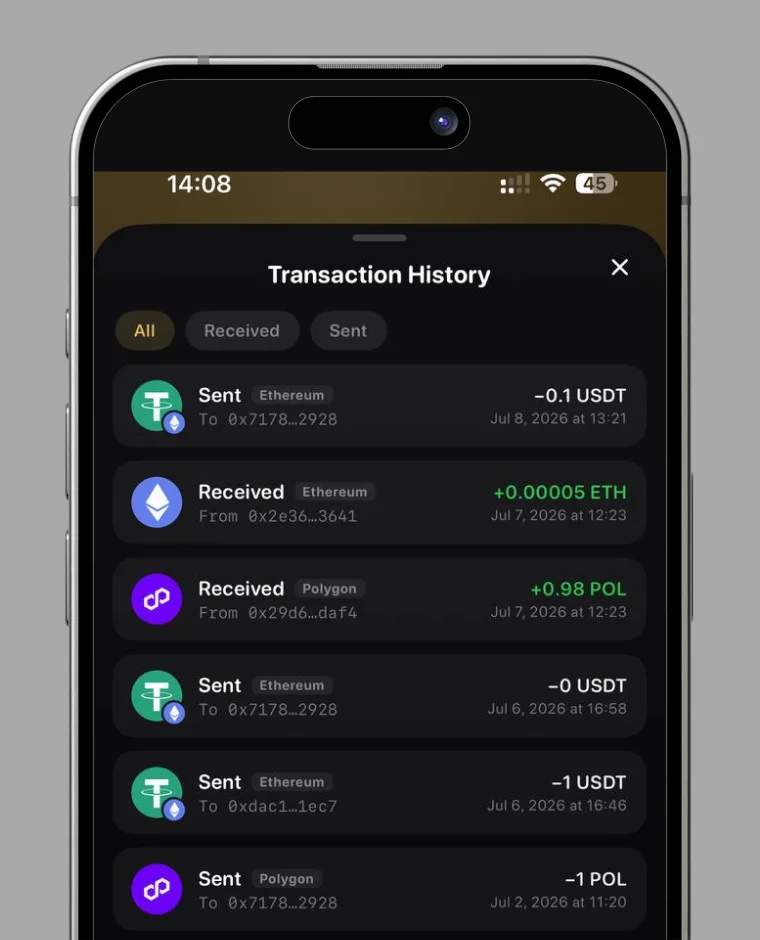
How to check transactions

The way you check depends on your purpose. Please choose the option you prefer.

① Check only deposits and withdrawals of tokens ② Check detailed information such as TX hash and destination address

Transactions
RC Wallet

Your trusted digital wallet for cryptocurrency management and seamless transactions.

Quick Links

Resources

Language

© 2026 RC Wallet. All rights reserved.