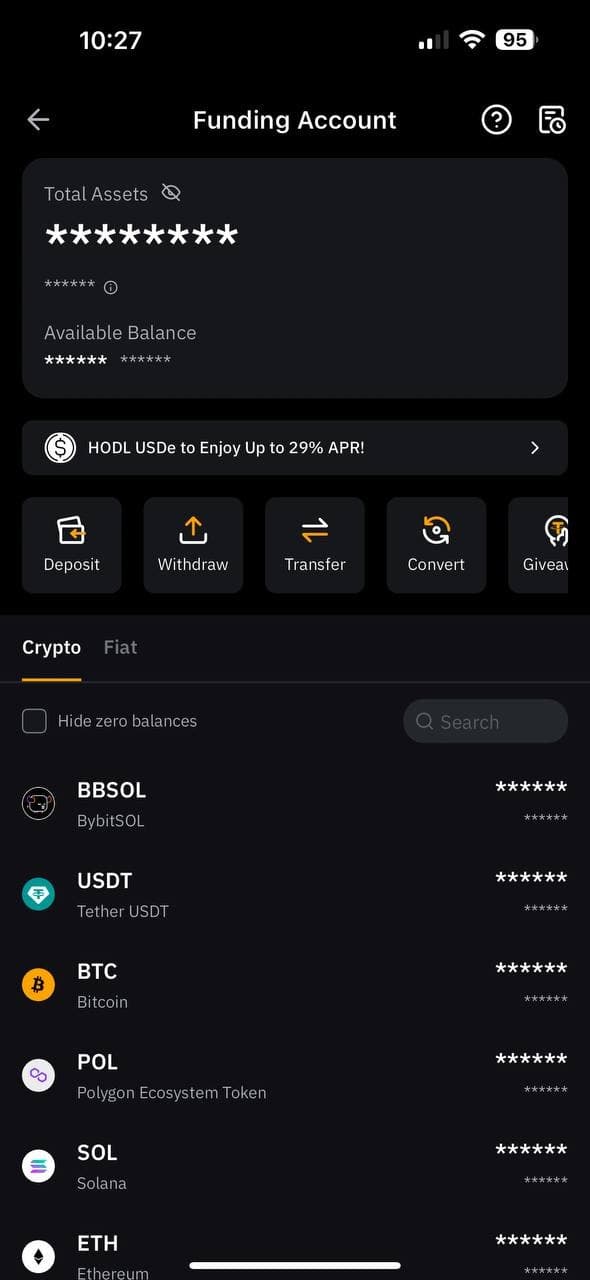
A clear and concise guide with images showing how to buy USDT on Bybit P2P. Includes payment methods, important notes, and how to check your assets.
Buy USDT on Bybit via P2P Trading
If you don't have a Bybit account yet, please create one first.
What is P2P Trading?
P2P trading stands for "Peer-to-Peer" trading, which refers to transactions conducted directly between individuals. The platform offers secure peer-to-peer trading facilitating cryptocurrency and fiat currency exchanges.
Cryptocurrencies Available for P2P Trading
- USDT
- USDC
- BTC
- ETH
How to Trade (PC)
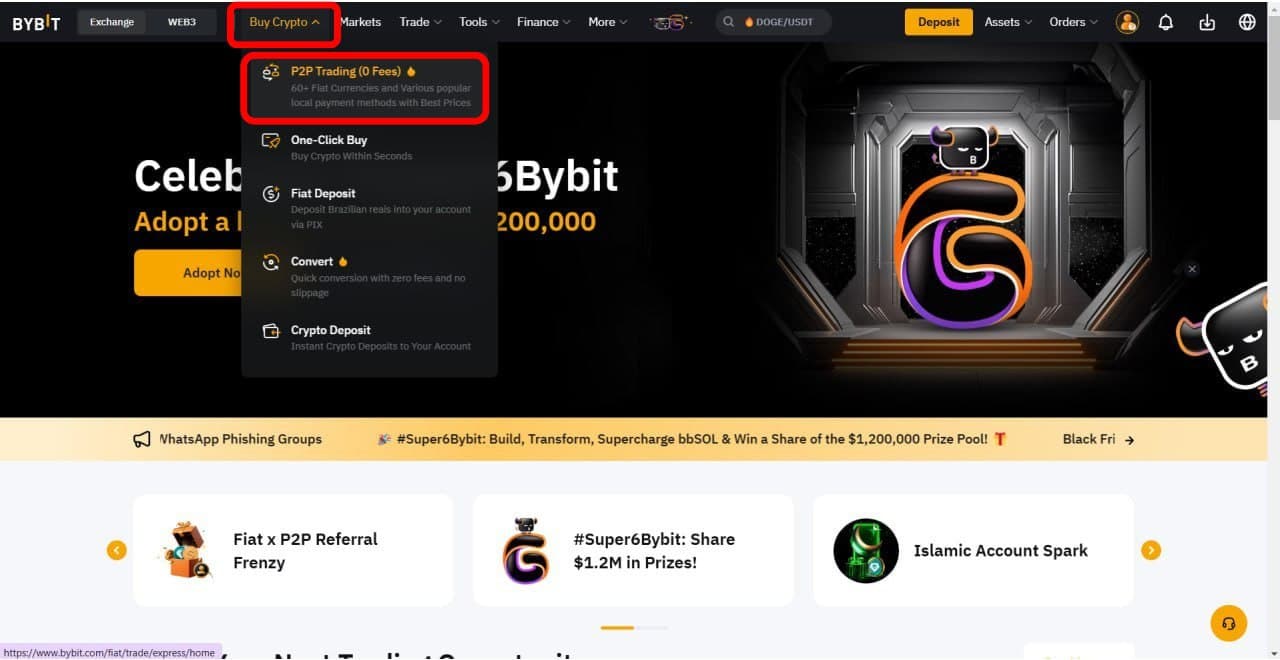
Home Screen
- Select "Buy Crypto"
- Click on "P2P Trading"
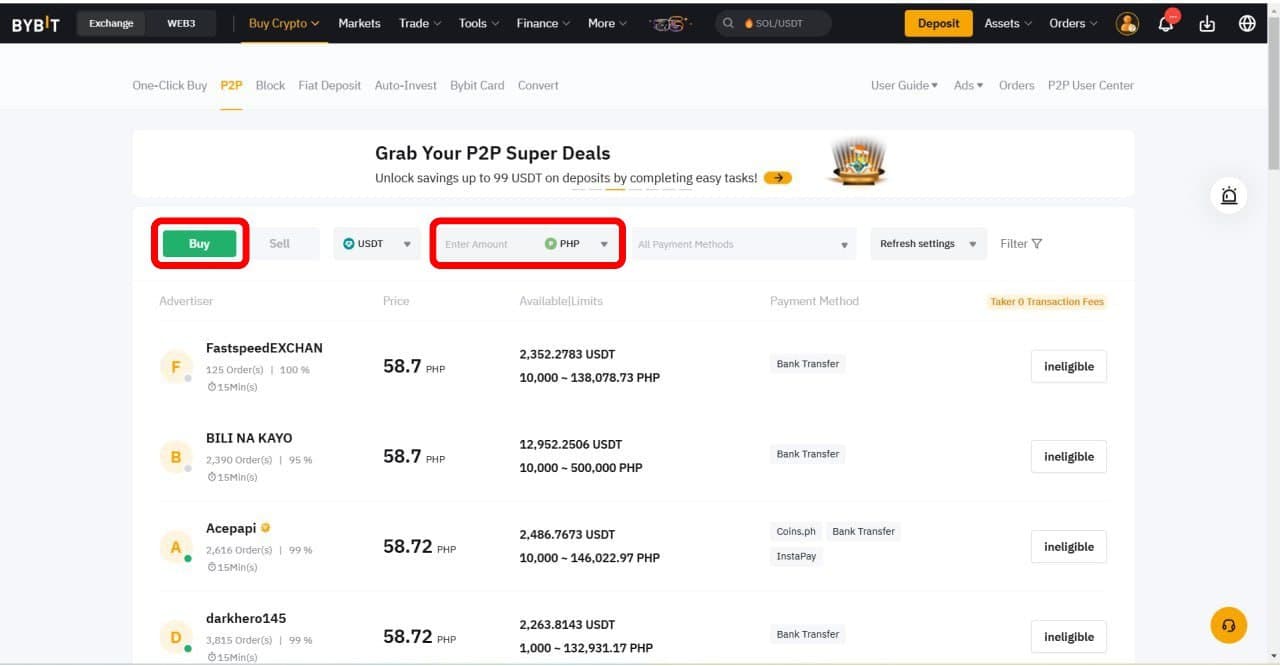
Trading Screen
Select "Buy" and choose your fiat currency.
Select an advertiser matching your criteria.
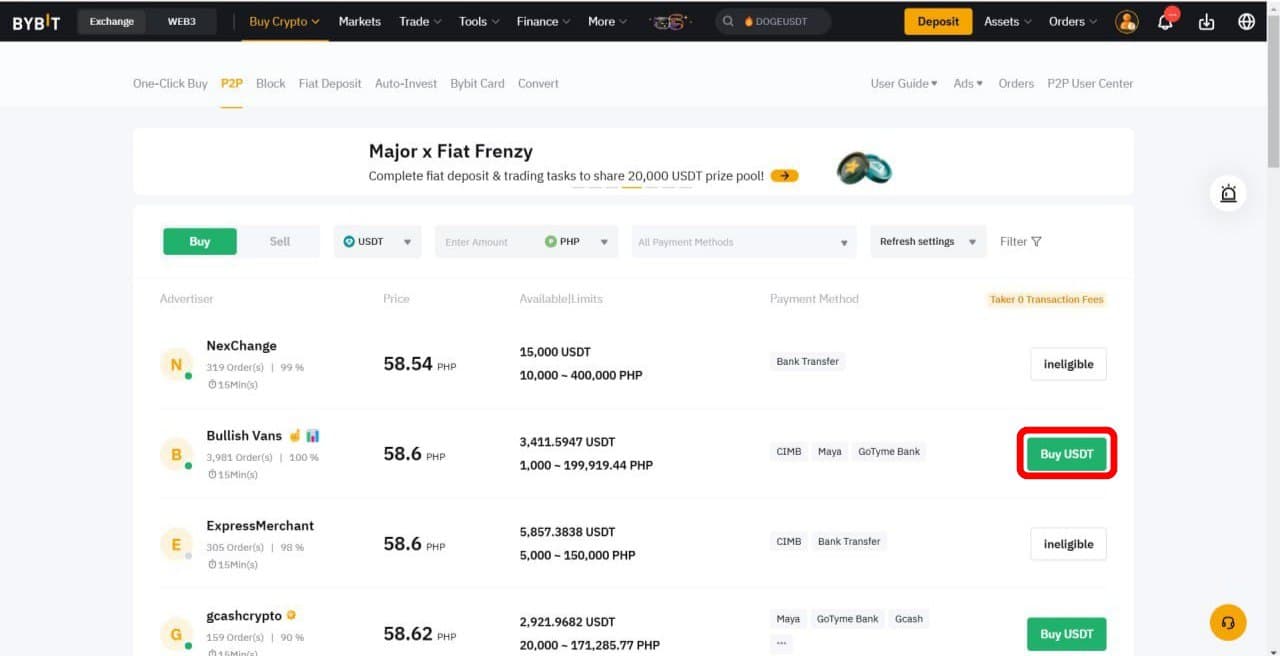
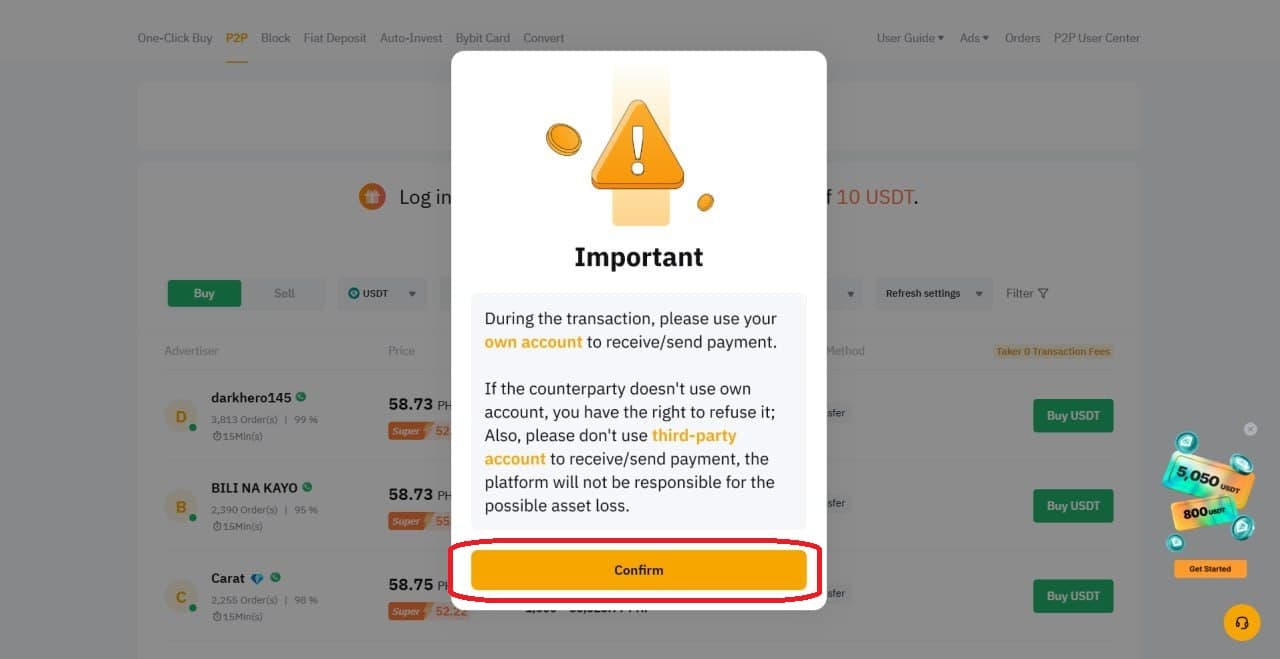
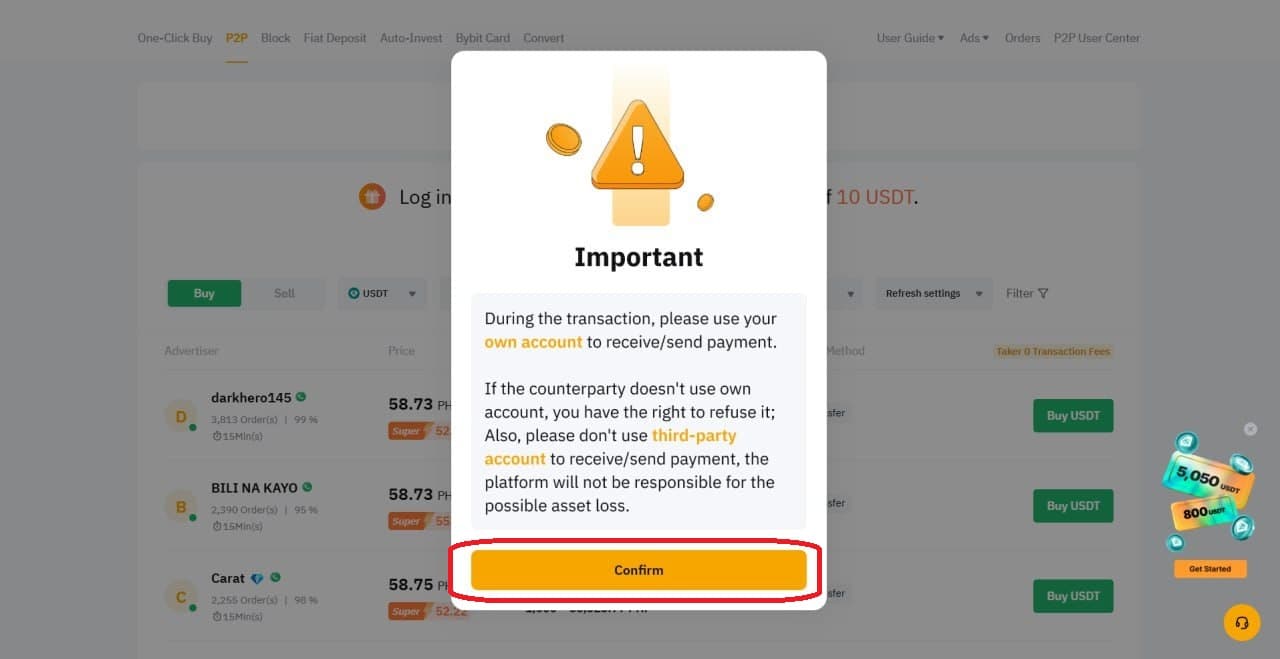
Select "Confirm".
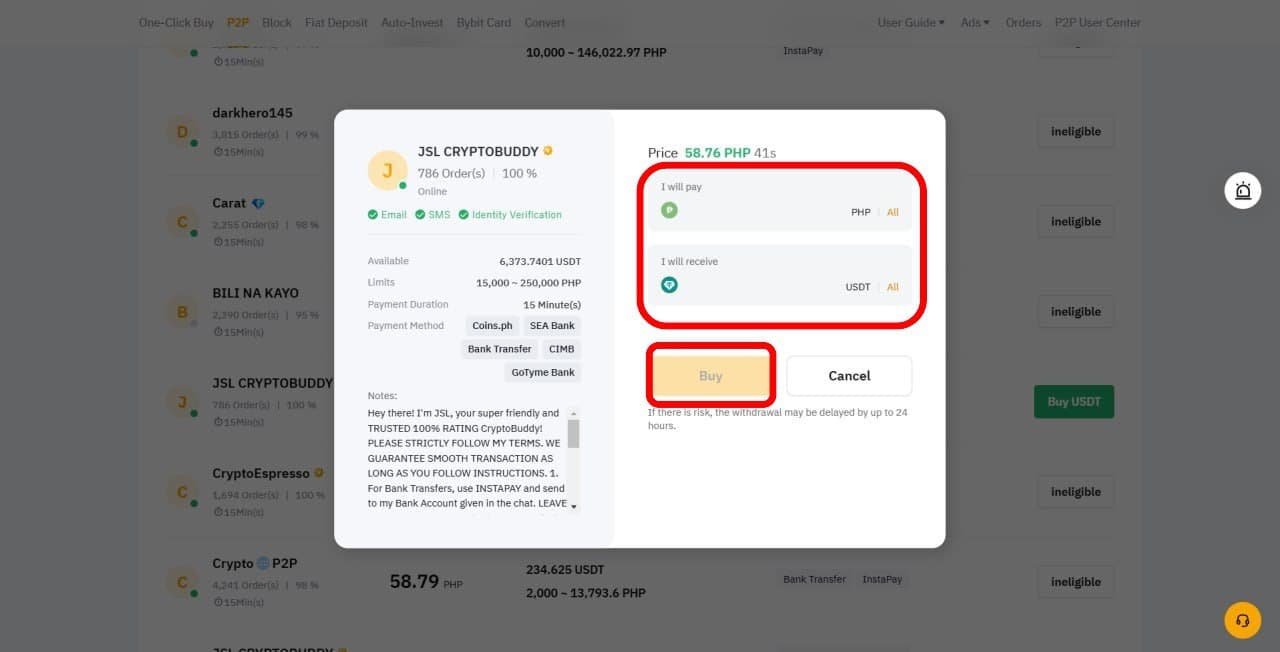
Enter your desired purchase amount and select "Buy".
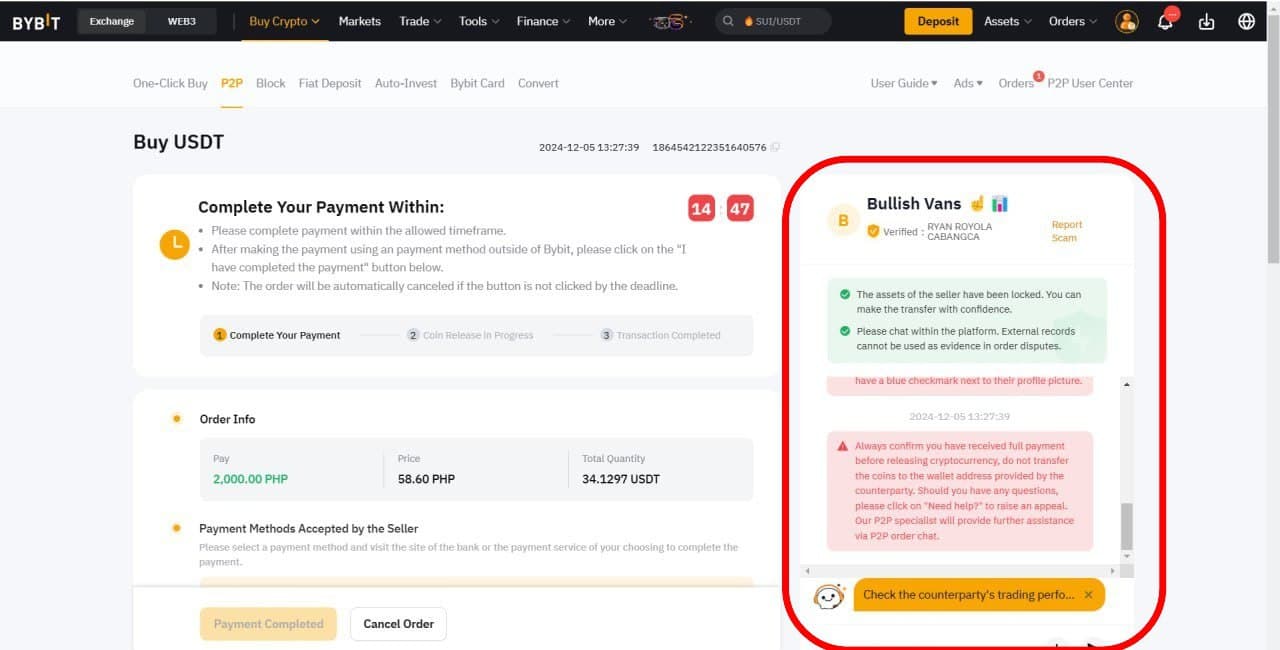
Confirm the payment method with the advertiser via chat.
Important: Complete the transaction within 15 minutes after this screen is displayed. If the transaction is not completed, it will be canceled. If you cancel transactions three times within 24 hours, you will be unable to use P2P trading for the rest of the day.
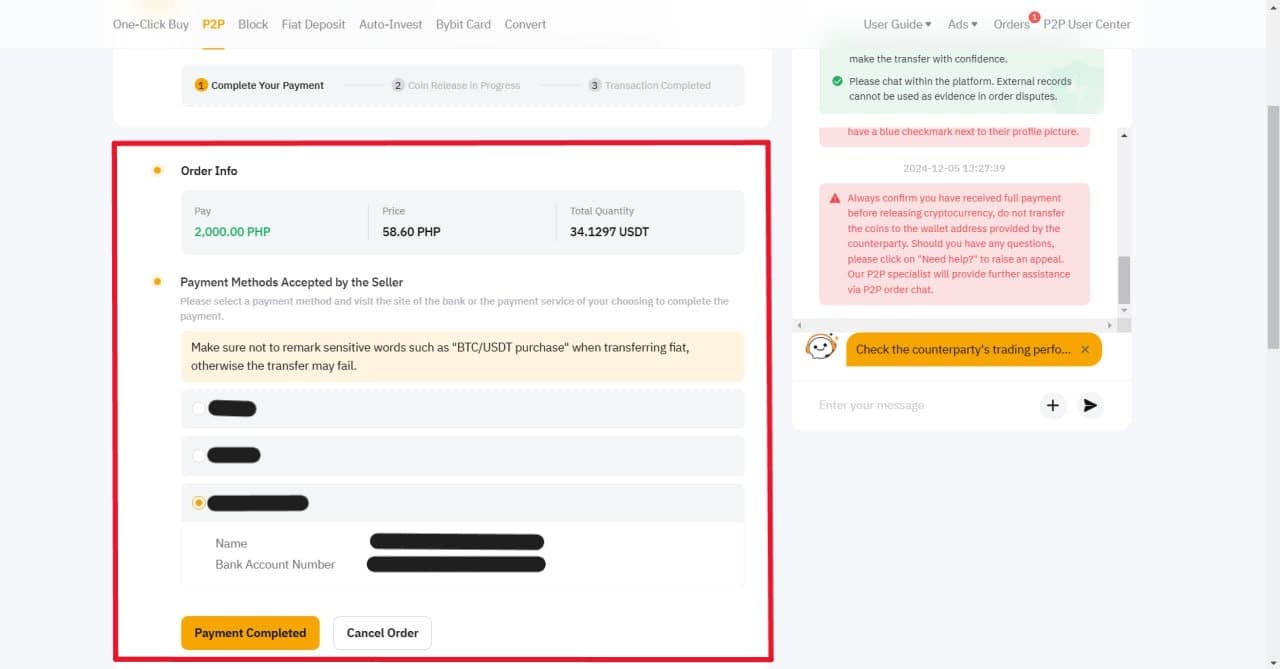
Select the recipient's account and click "Payment Completed" once the transfer finishes.
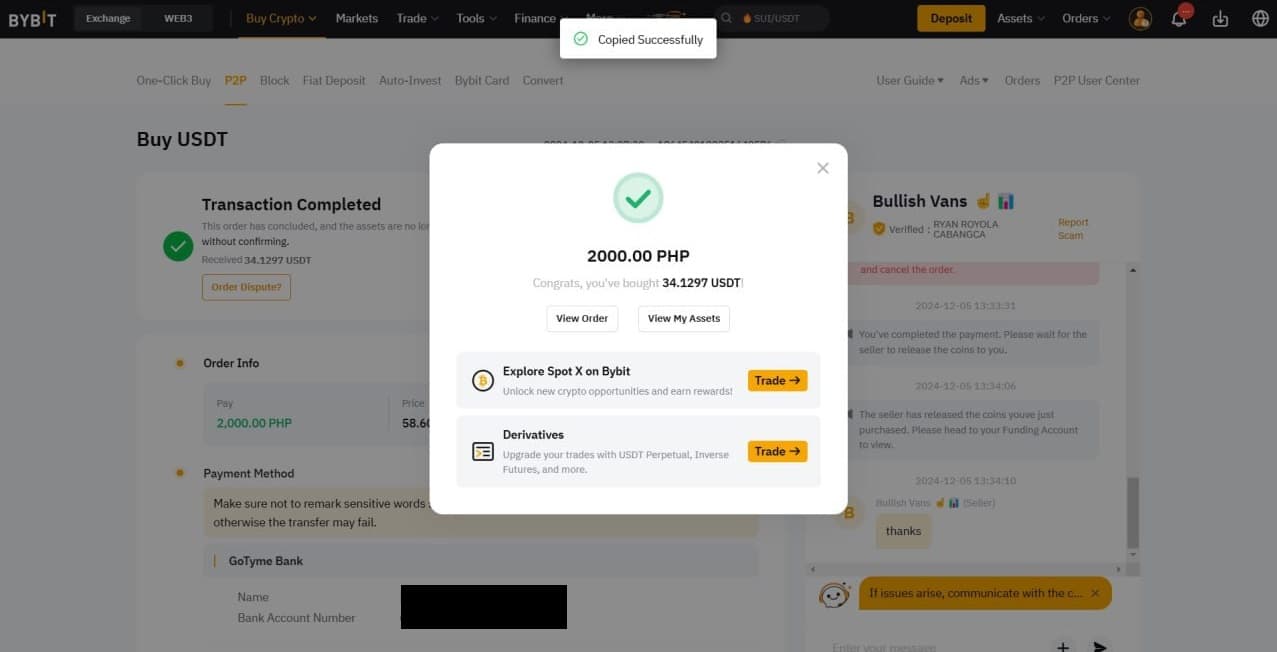
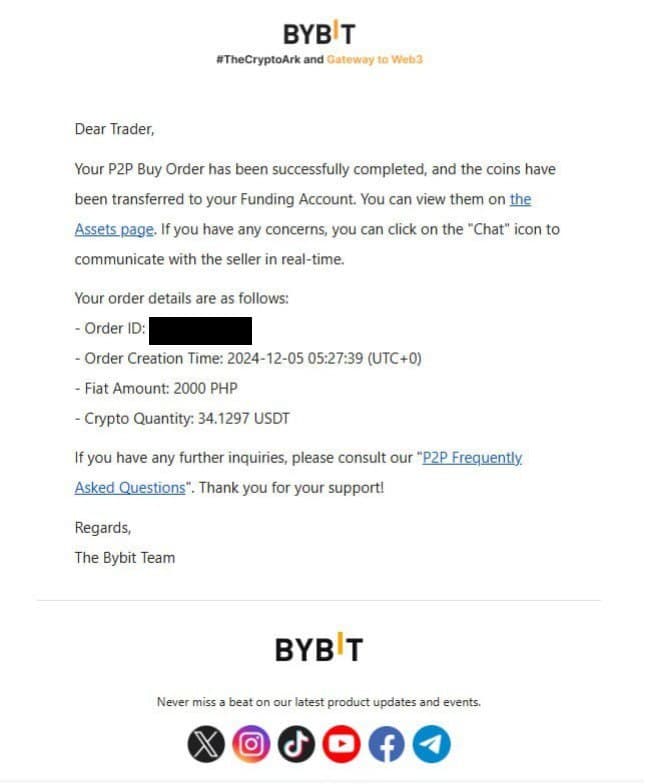
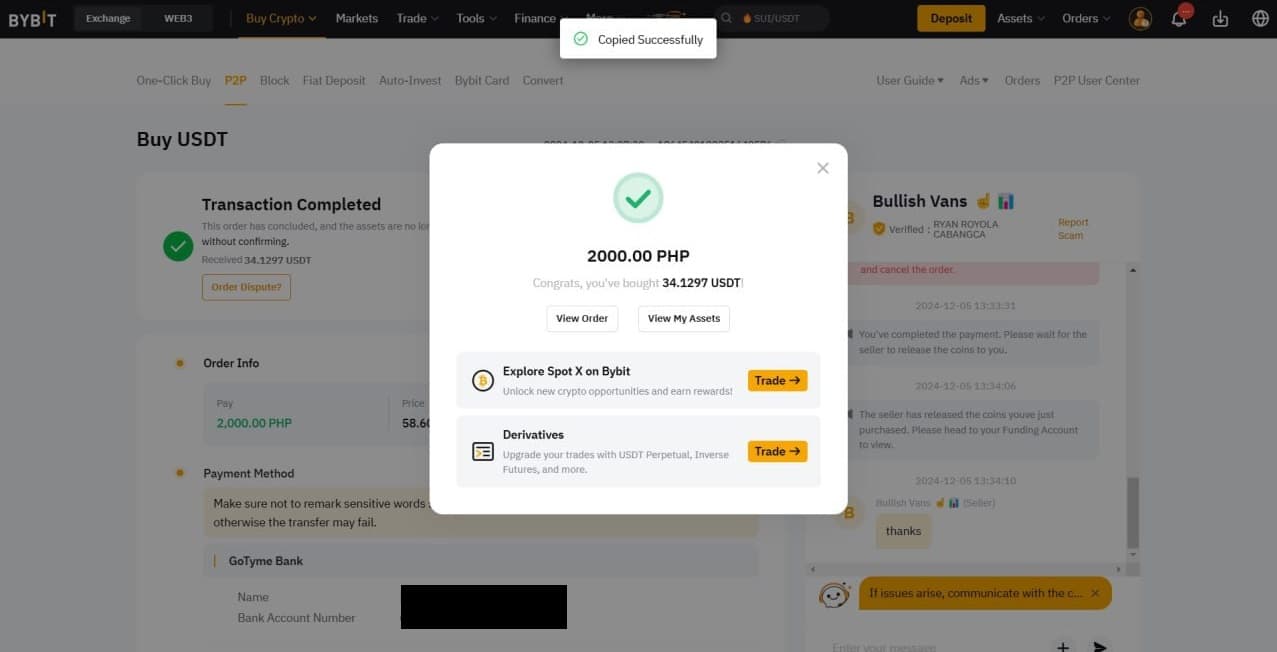
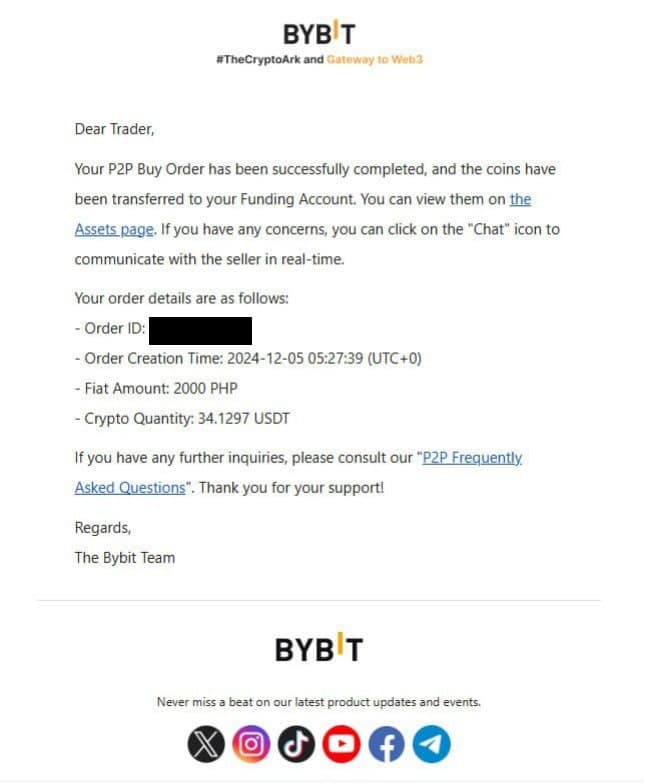
Transaction completion confirmation will be displayed. An email notification will also be sent.
Trading Procedure (Phone)
Home Screen
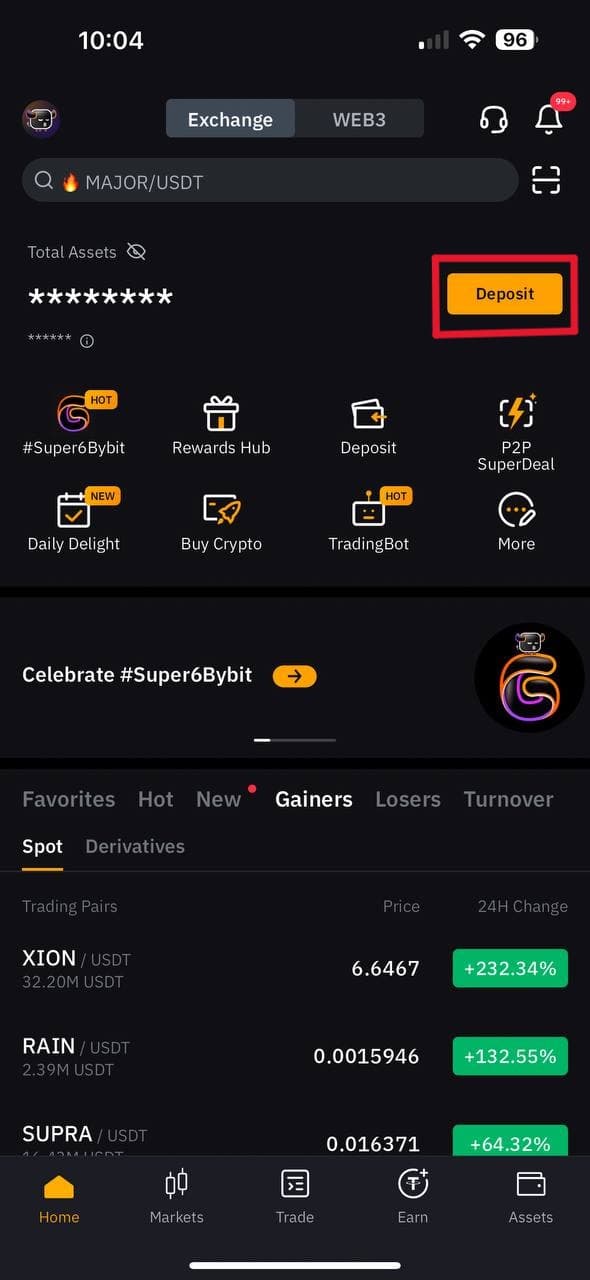
Select "Deposit".
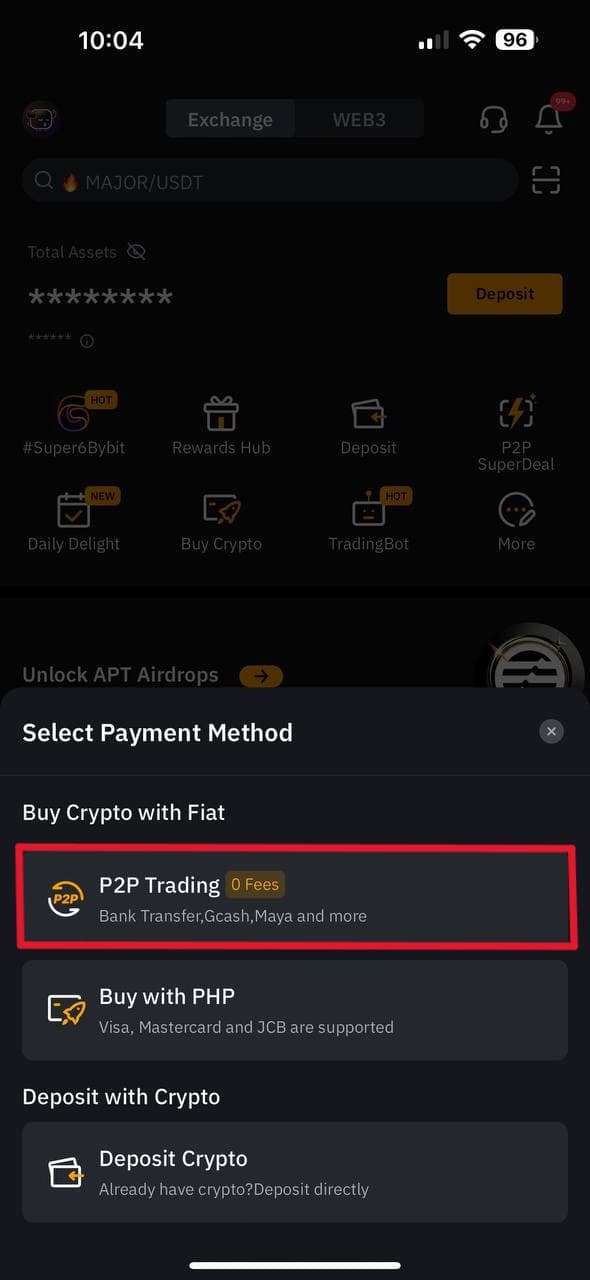
Select "P2P Trading".
Trading Screen
Select "Buy", choose your fiat currency, and select an advertiser matching your criteria.
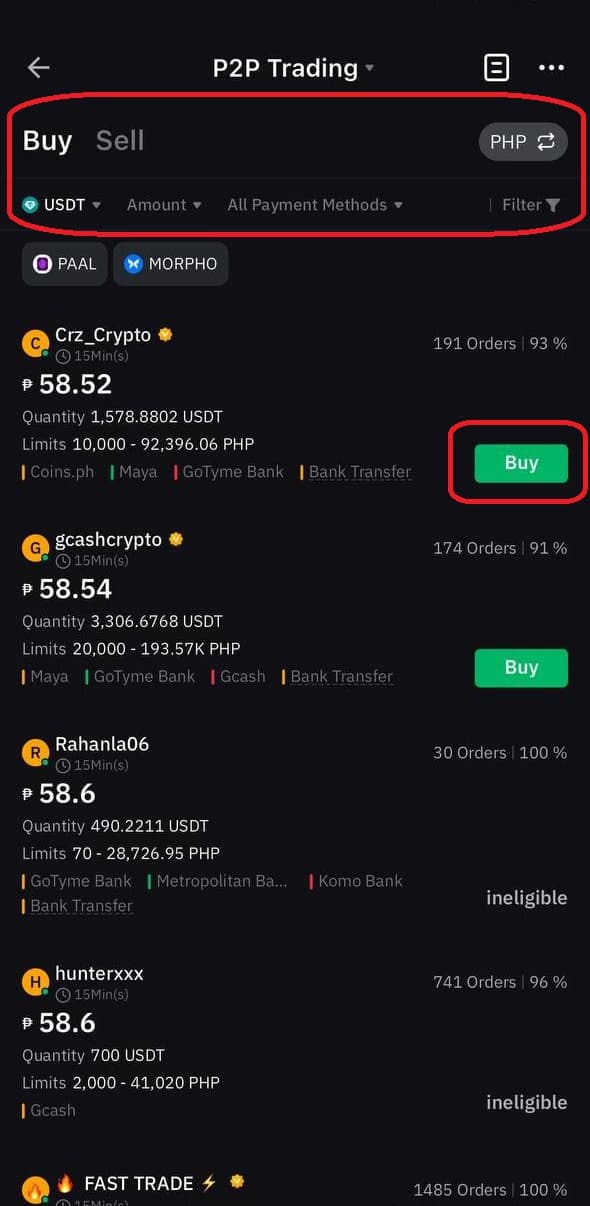
Select "Confirm".
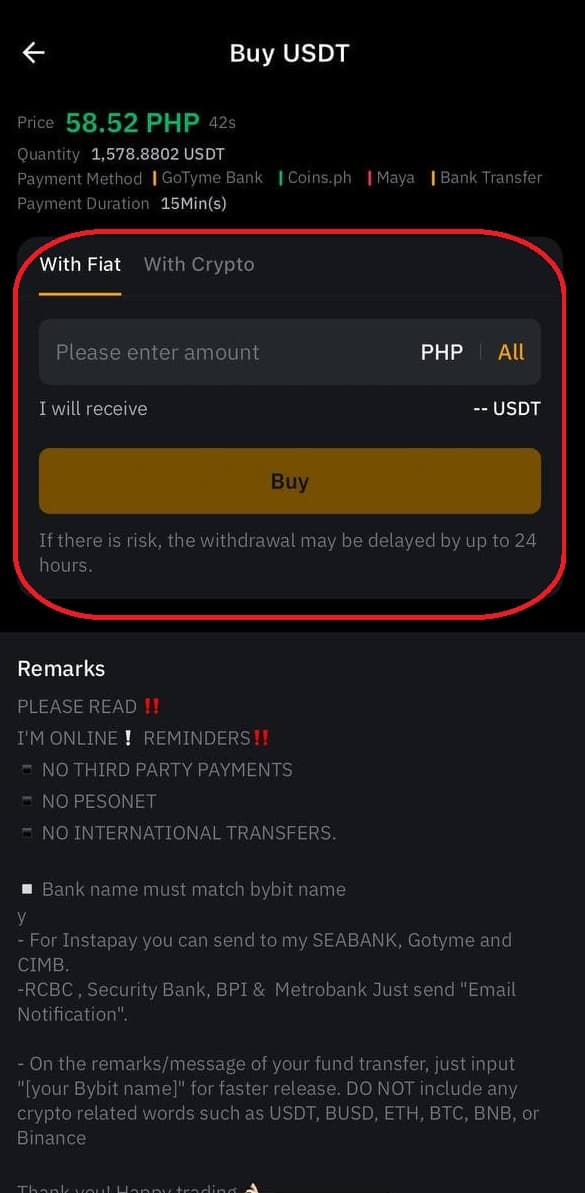
Enter your desired purchase amount and select "Buy".
Confirm the payment method with the advertiser via chat.
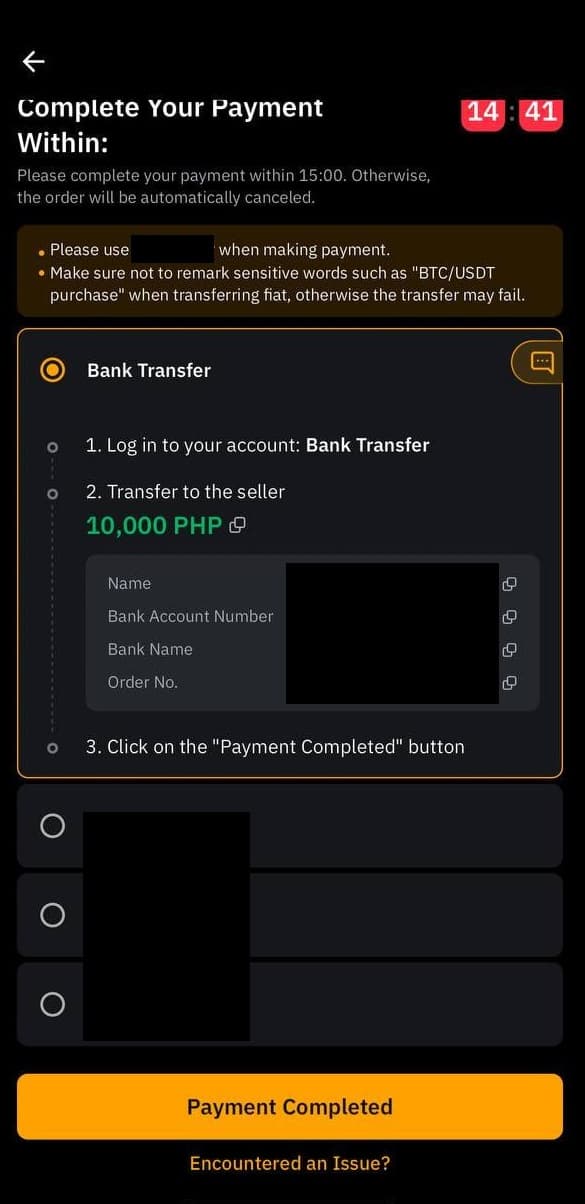
Important: Complete the transaction within 15 minutes after this screen is displayed. If the transaction is not completed, it will be considered canceled. If you cancel transactions three times within 24 hours, you will be unable to use P2P trading for the rest of the day.
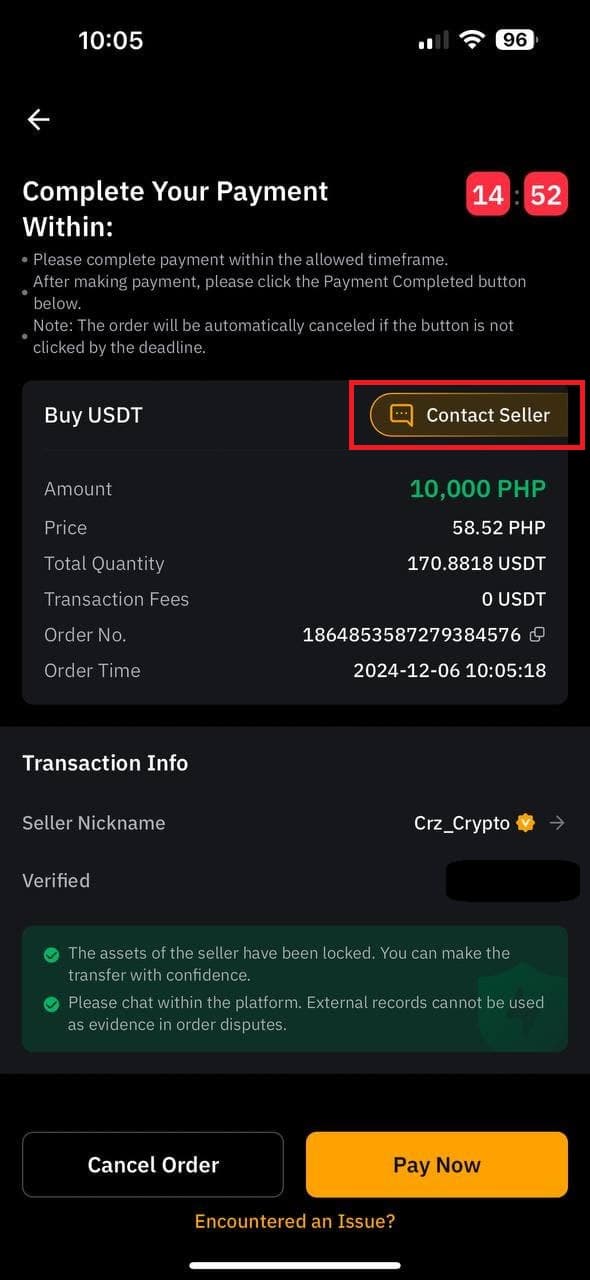
Select the recipient's account and click "Payment Completed" once the transfer finishes.
Transaction completion confirmed. An email notification will also be sent.
How to Check Assets (PC)
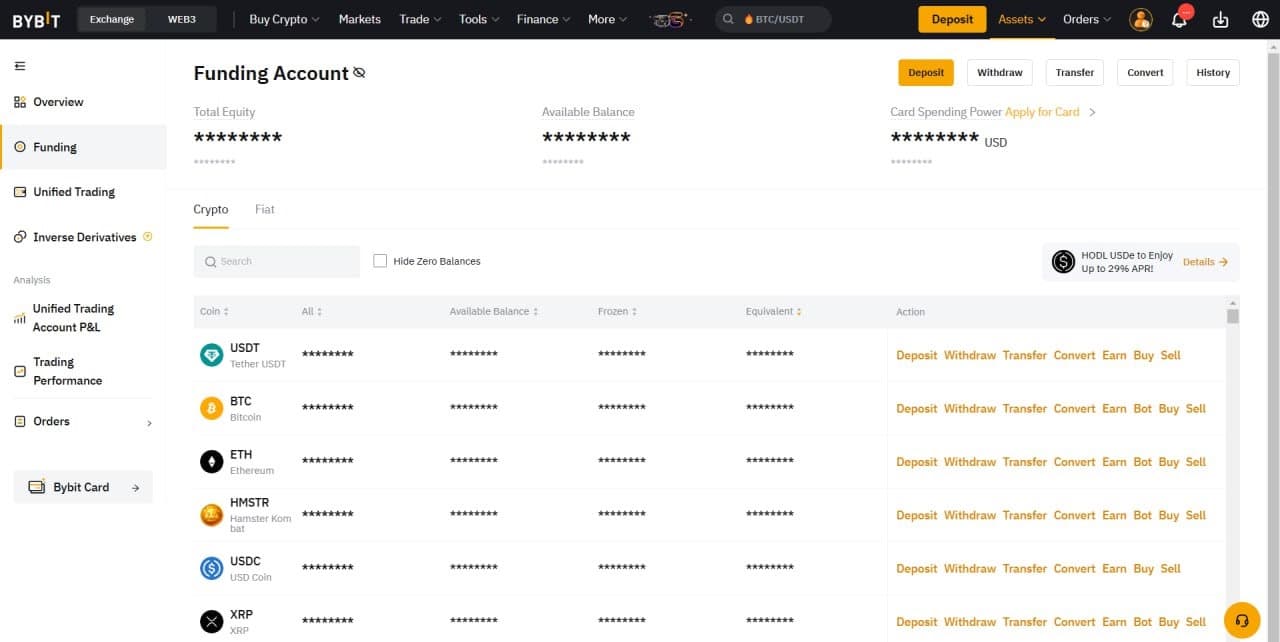
Select "Funding Account" from "Assets".
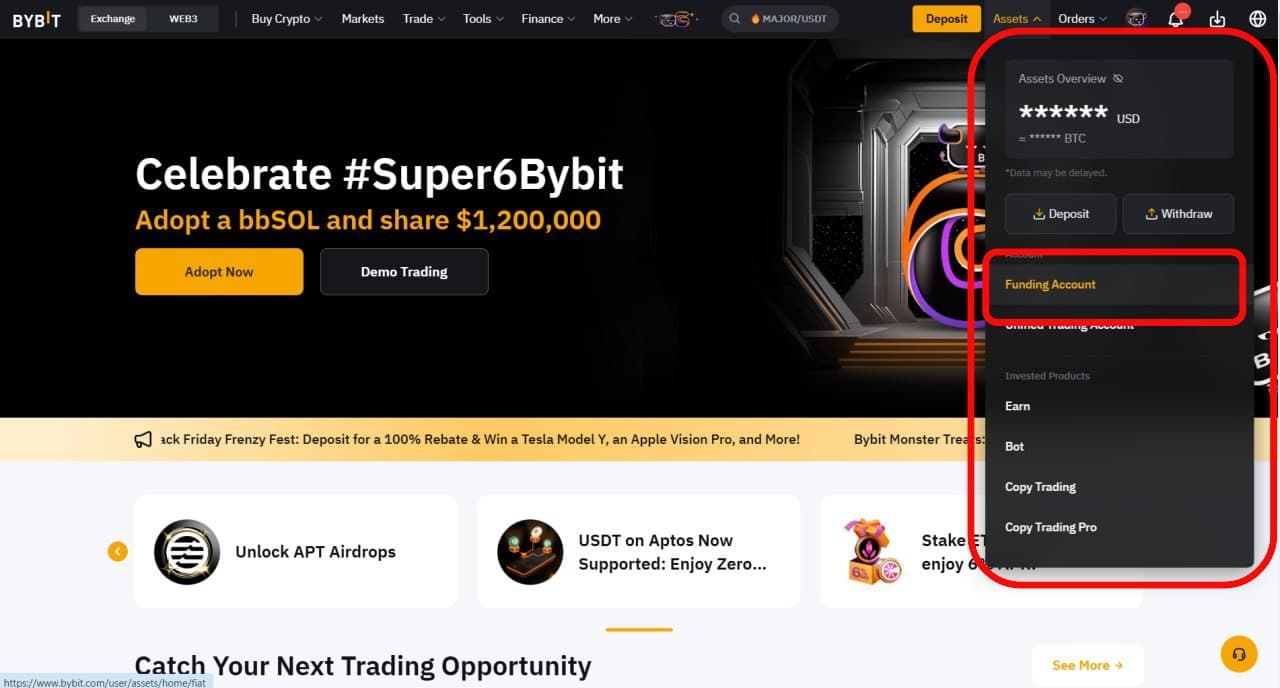
Your asset list will be displayed.
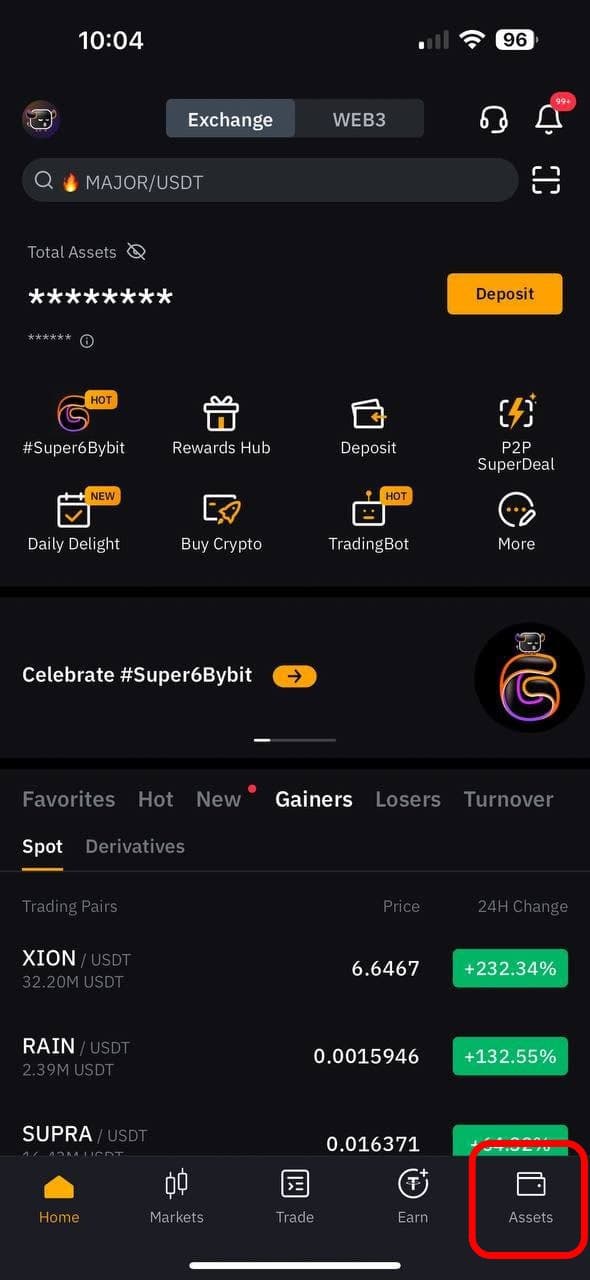
How to Check Assets (Phone)
Select "Funding" from "Assets".
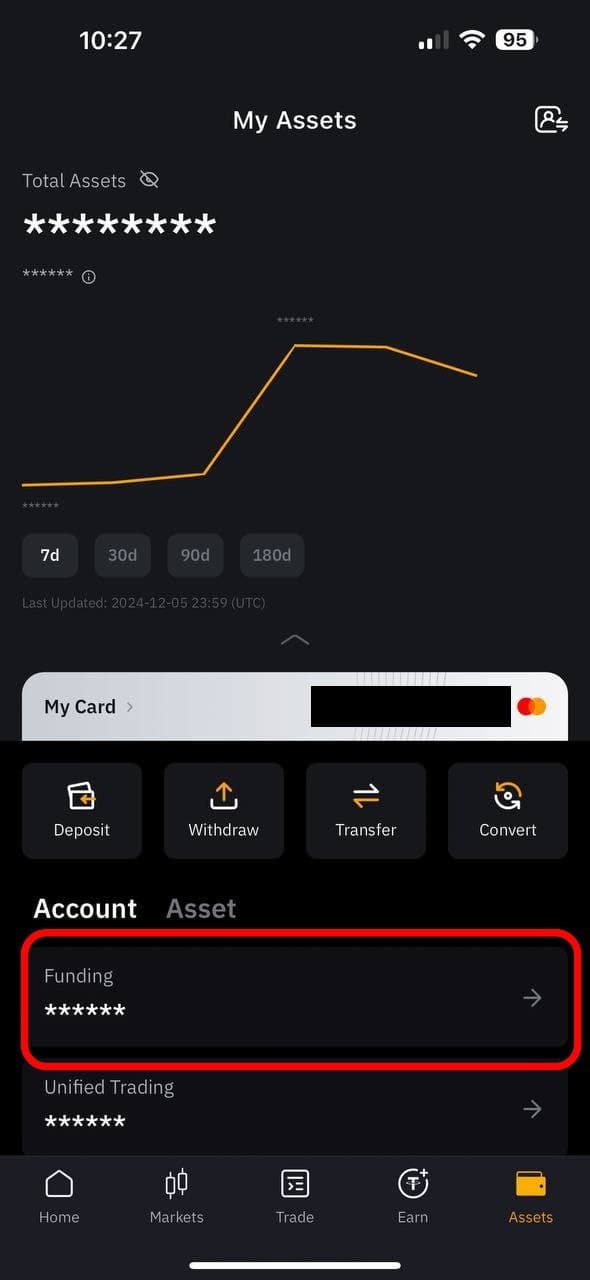
Your asset list will be displayed.