How To Create a New RC Wallet
Step-by-step instructions to install the RC Wallet mobile app
Create a New RC Wallet


Install the mobile app from the specified download link.
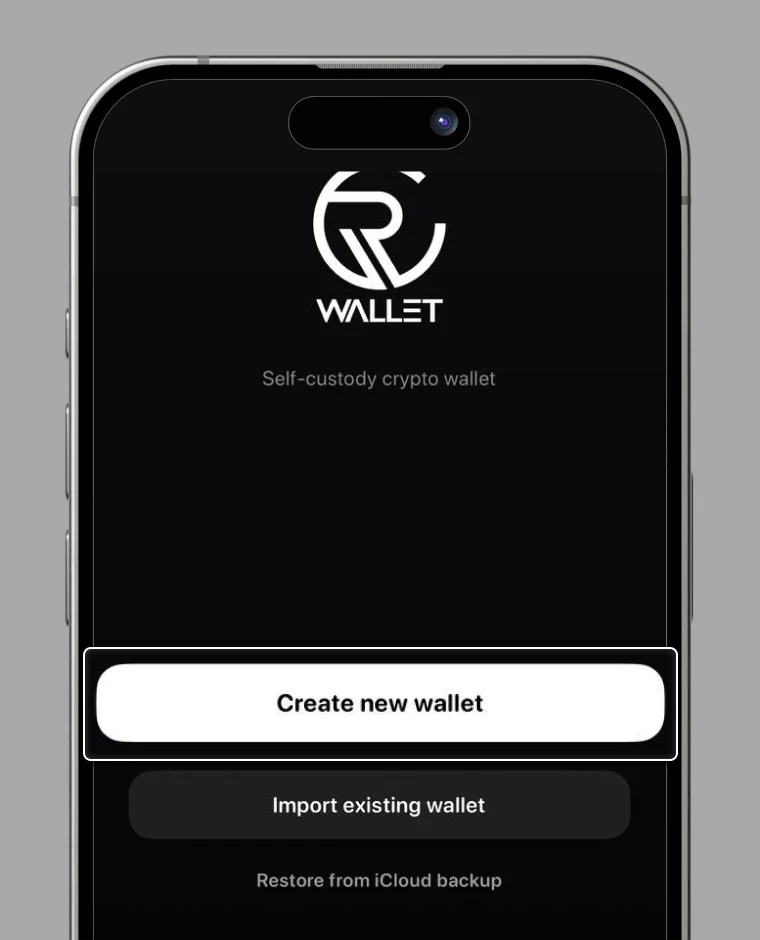
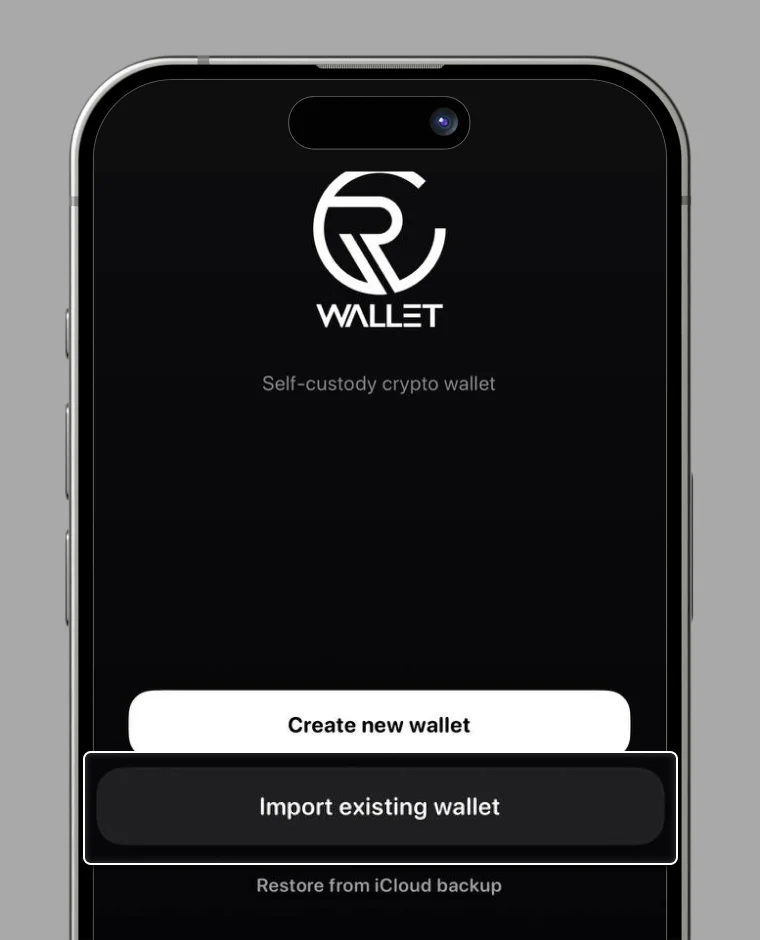
1. Select "Create new wallet".
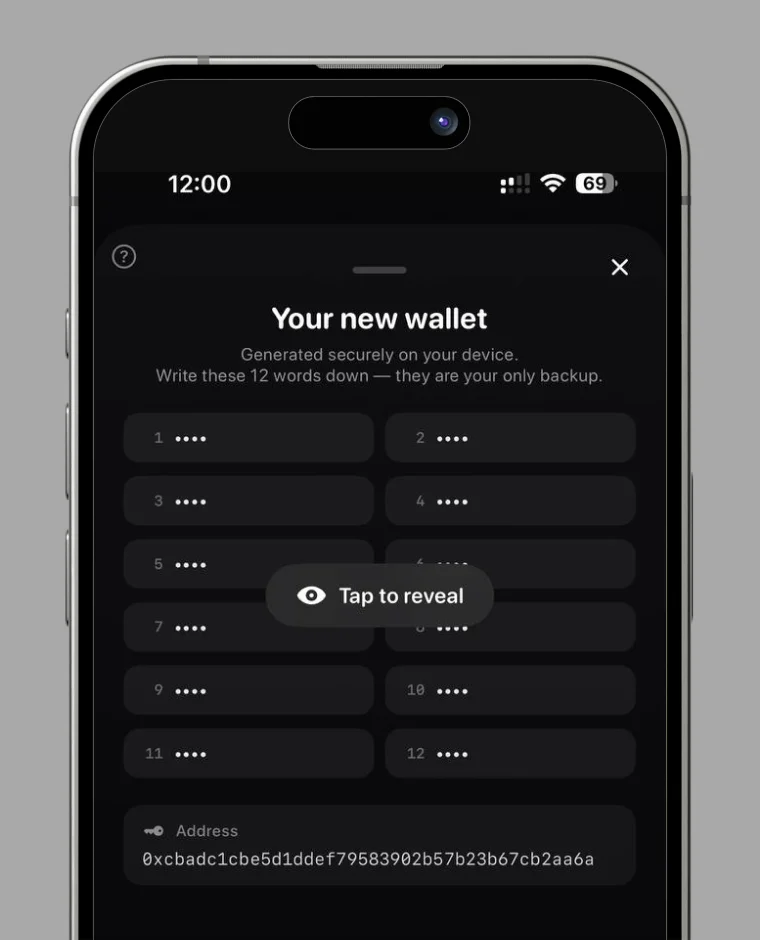
2. Save the Recovery Phrase (Seed Phrase)
Follow the instructions to accurately save the 12 words.
After saving, check the box and proceed to [Use this Wallet].
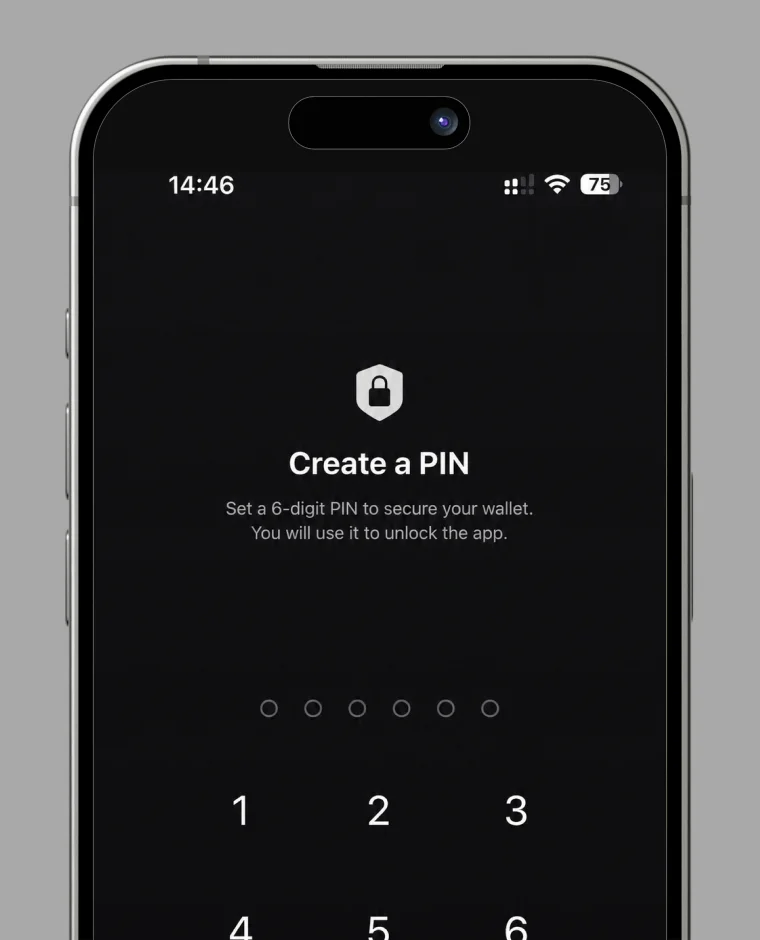
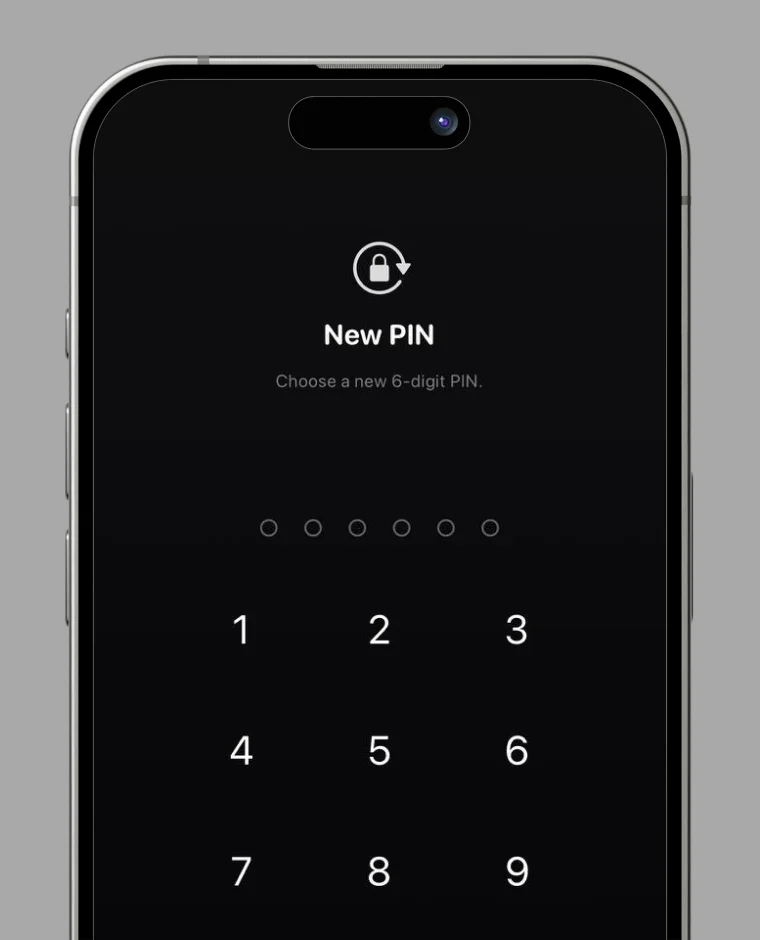
3. Please set your PIN.
4. Your wallet creation is complete.
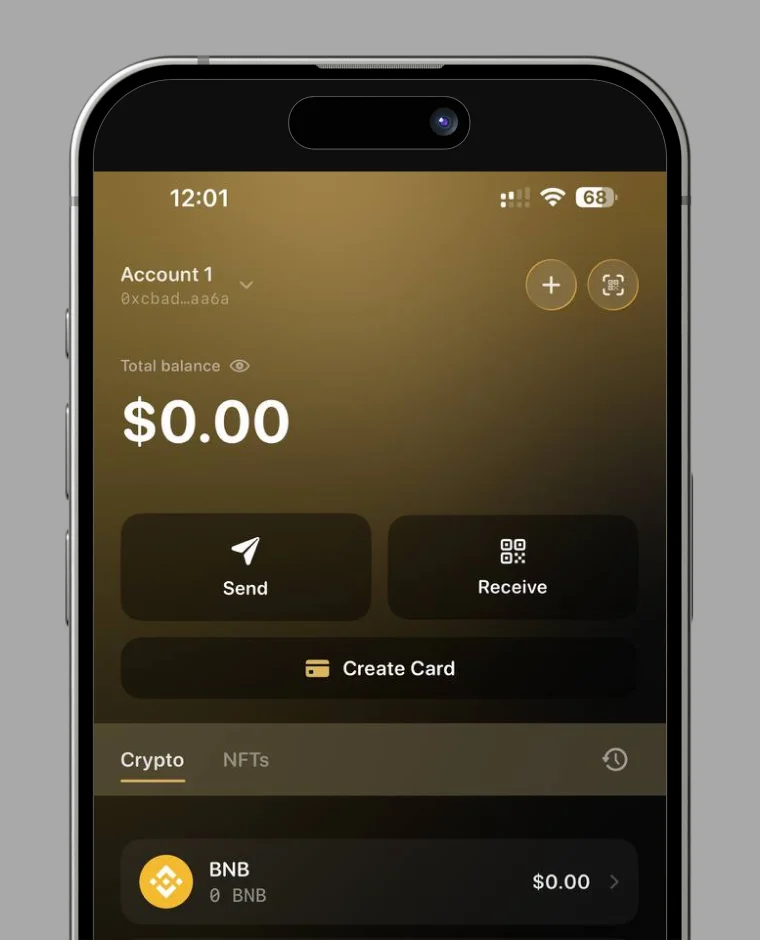
Log In to RC Wallet
1. Select "Import existing wallet".
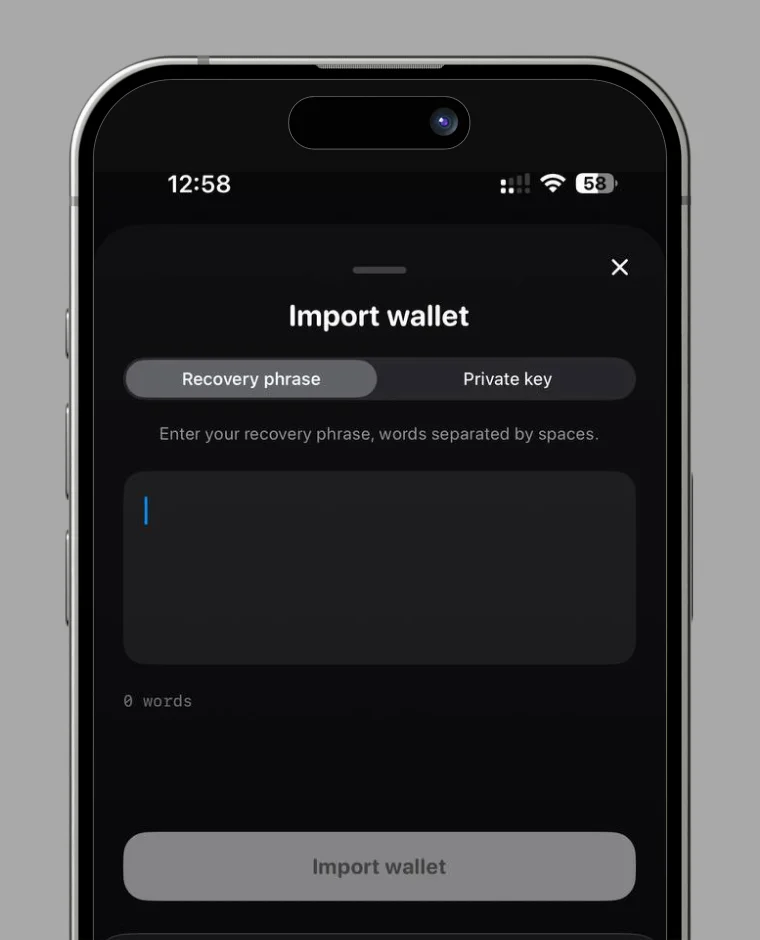
2. Enter your recovery phrase (12 words) and select "Import wallet".
3. Setting your PIN completes the process.
Card Application
1. Tap "Create a Card" on the home screen.
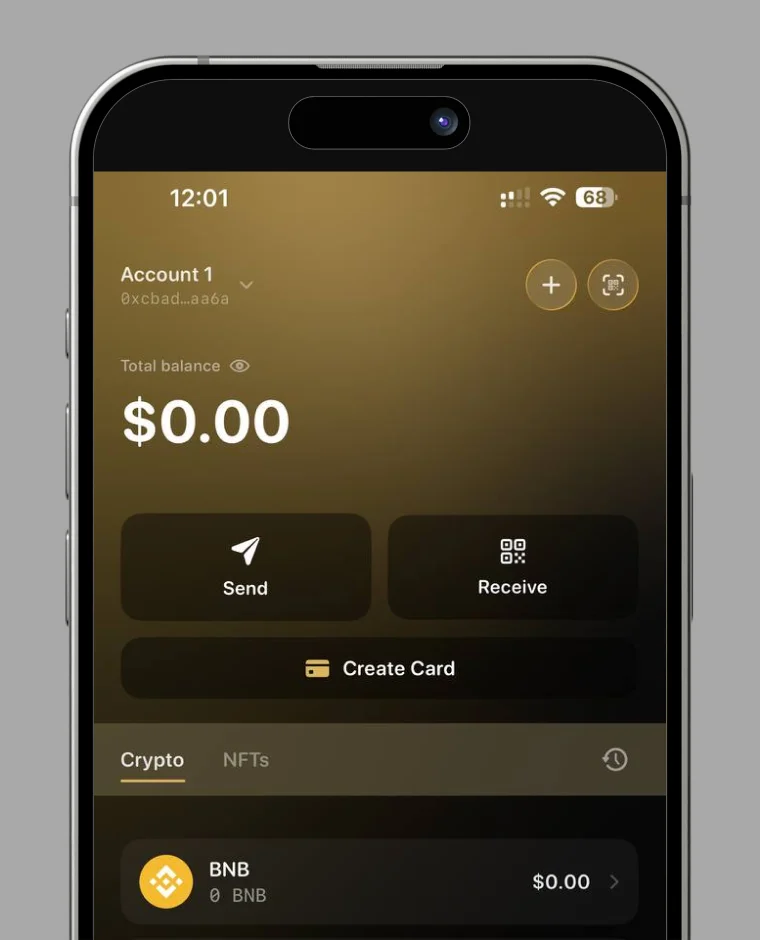
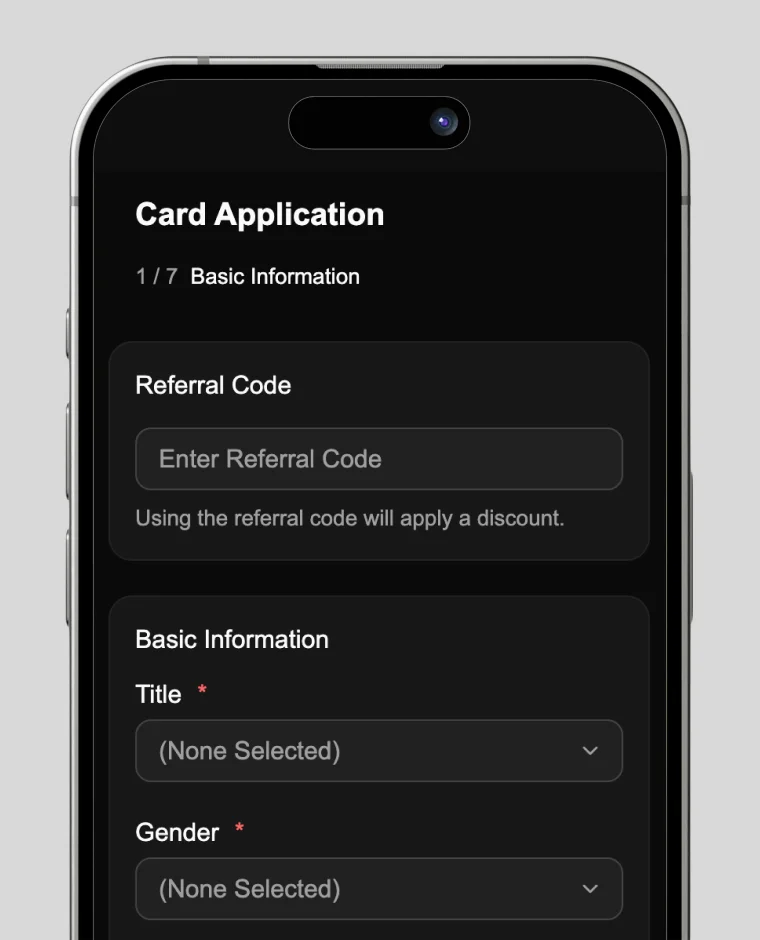
2. Enter Basic Information
Enter your referral code (optional), title, gender, and full name.
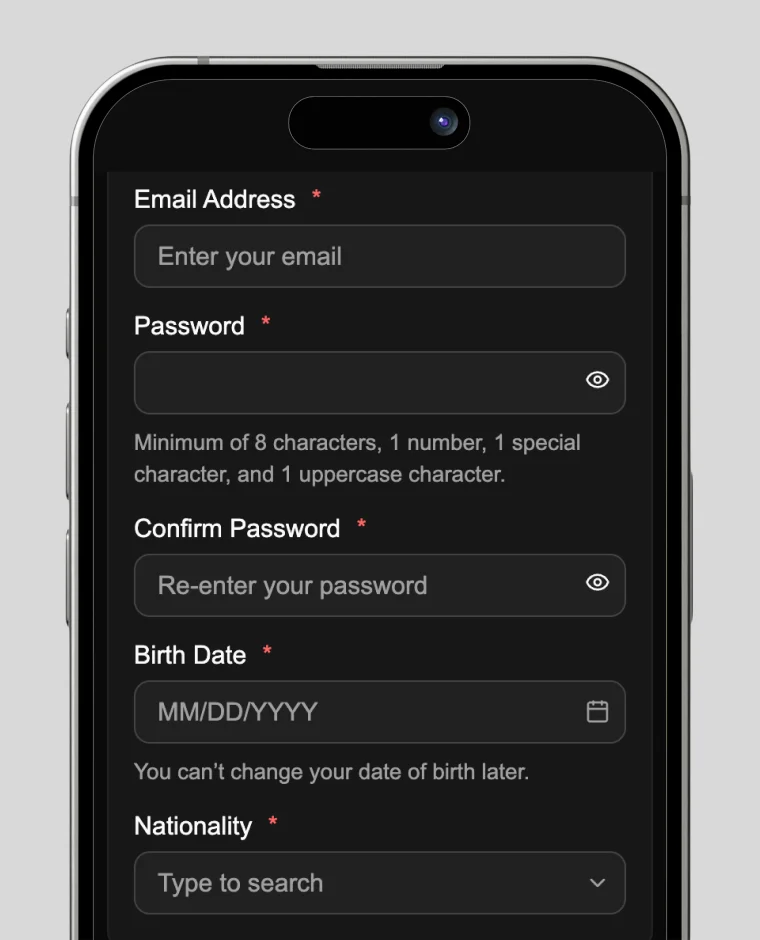
Enter your email address, password, date of birth, and nationality.
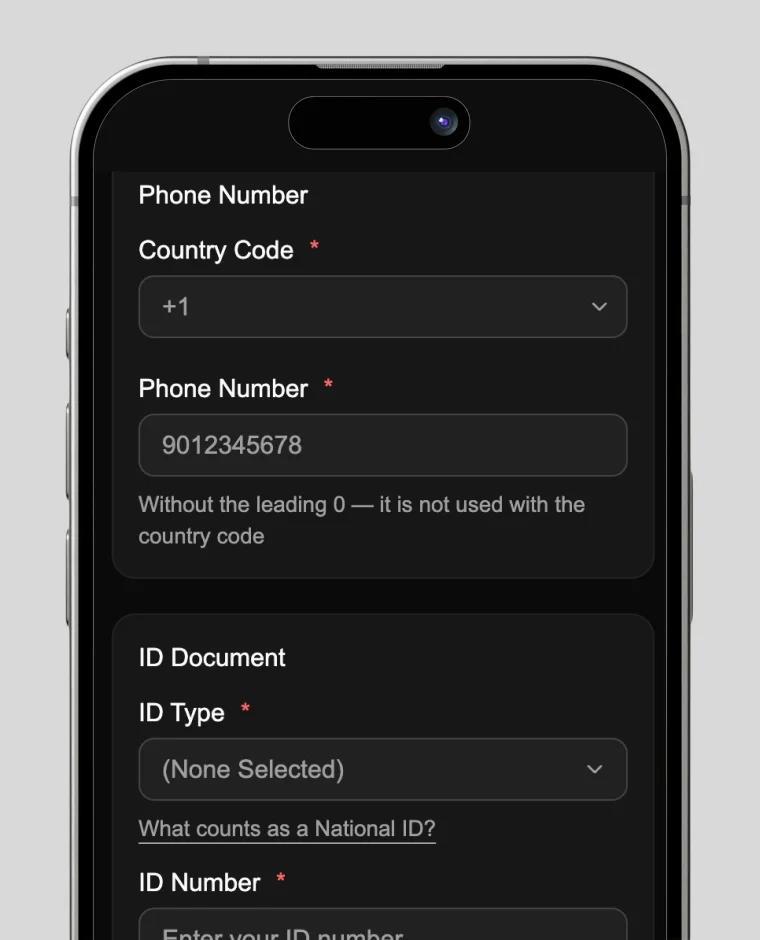
Enter your phone number and ID document.
3. Register Address & Upload Proof
Enter your residential address.
If your billing address is the same, check the box to copy it automatically.
To ship to a different address, enter that in the billing address field.
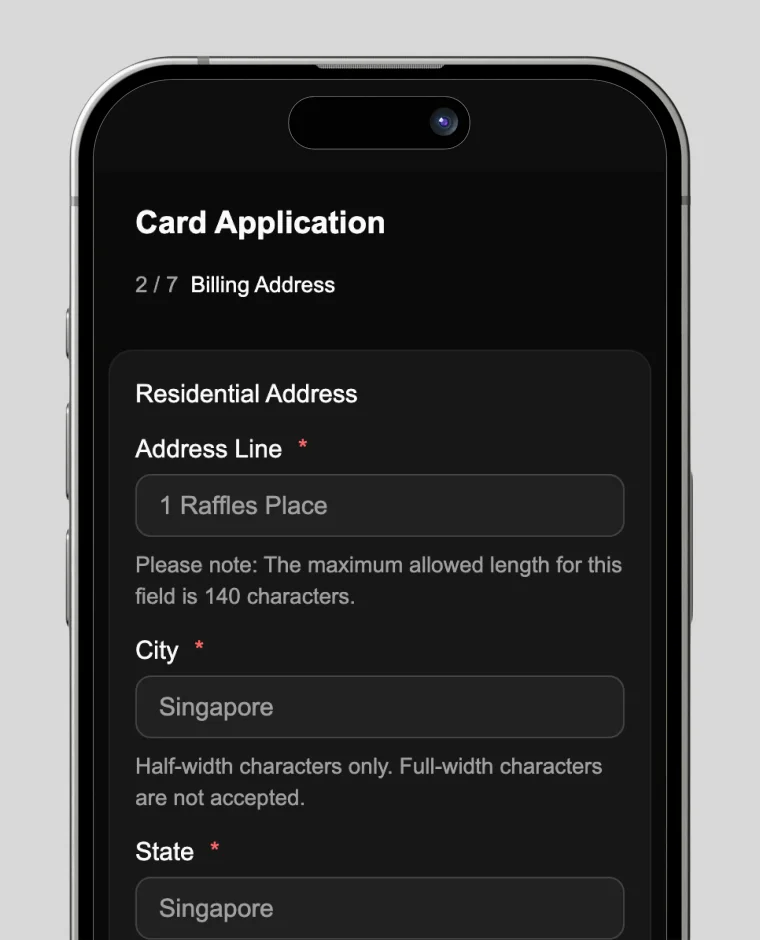
Upload your driver's license or My Number card, or
a proof-of-address document dated within the last three months:
- Utility bill (electricity, water, gas)
- Bank statement or card statement
- Tax notice or official government letter
- Rental agreement or rent receipt
- Resident registration certificate
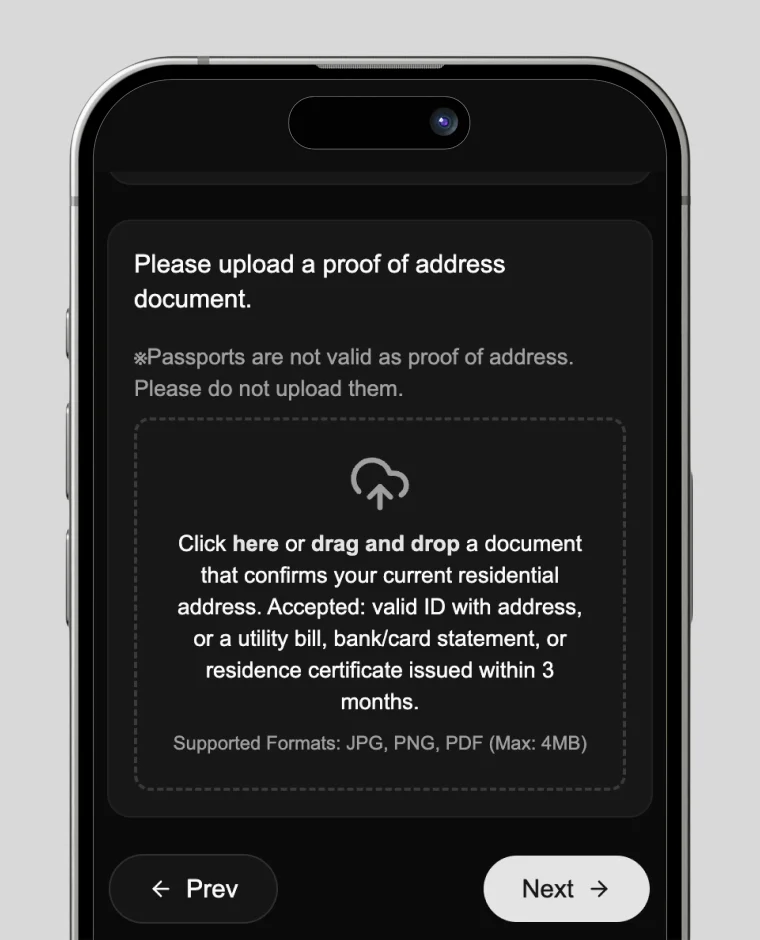
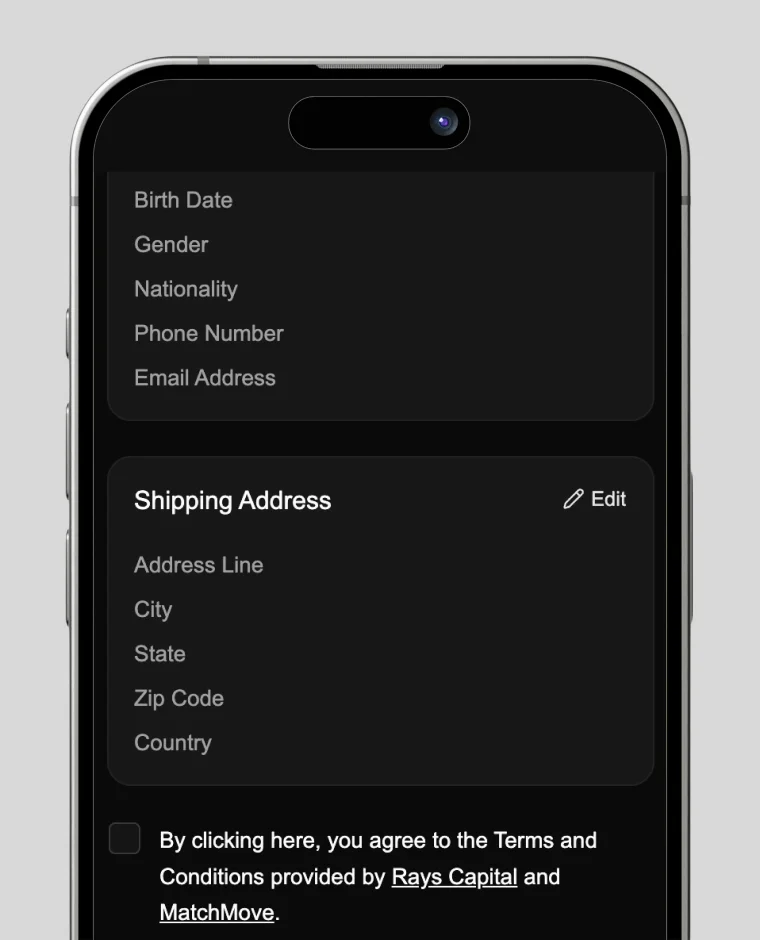
4. Confirm Delivery Address & Agree to Terms
Review your basic information and confirm the delivery address.
Check the boxes to agree to the Rays Capital and MatchMove Terms of Service and Privacy Policy.
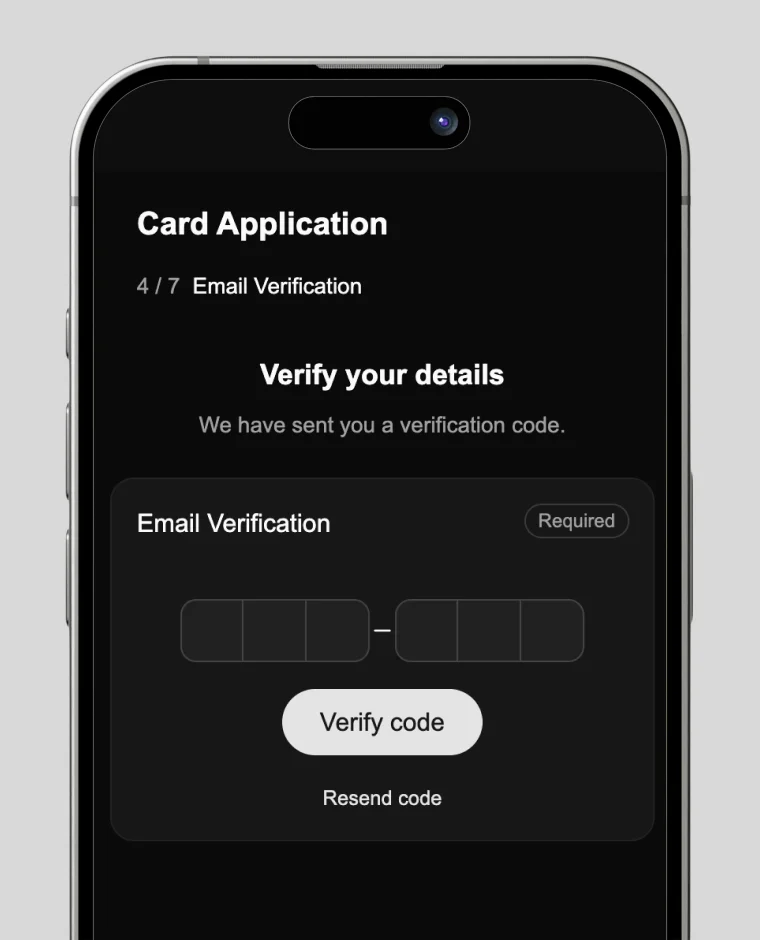
5. Verify Email Address
Tap "Send OTP" to receive a one-time password by email.
Enter the OTP you receive and tap "Verify OTP."
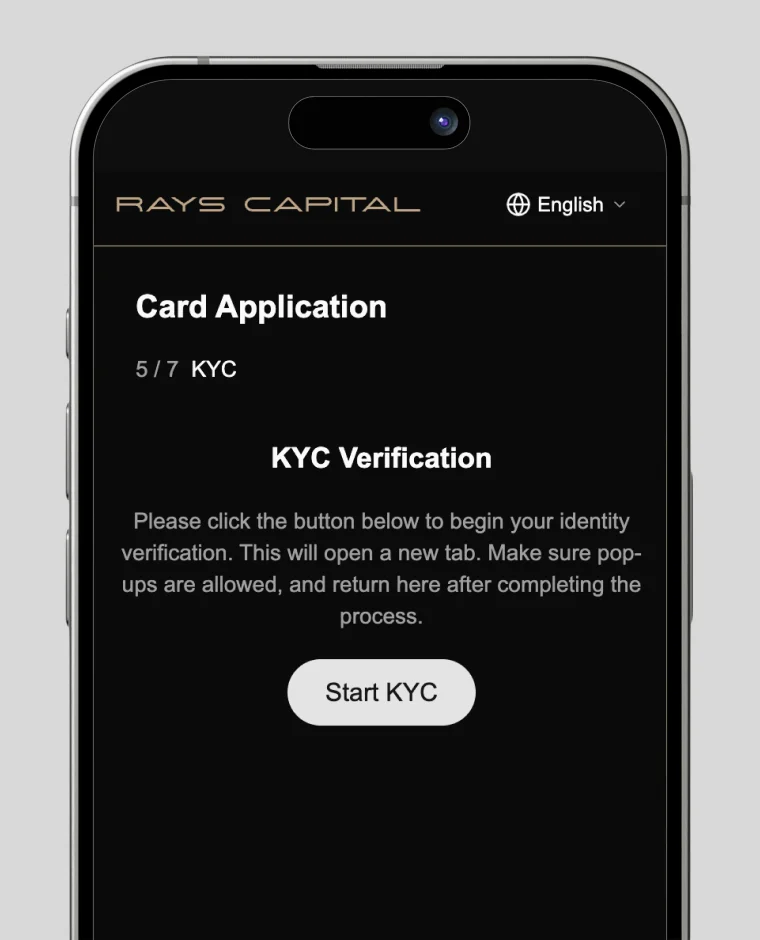
6. Complete KYC Verification
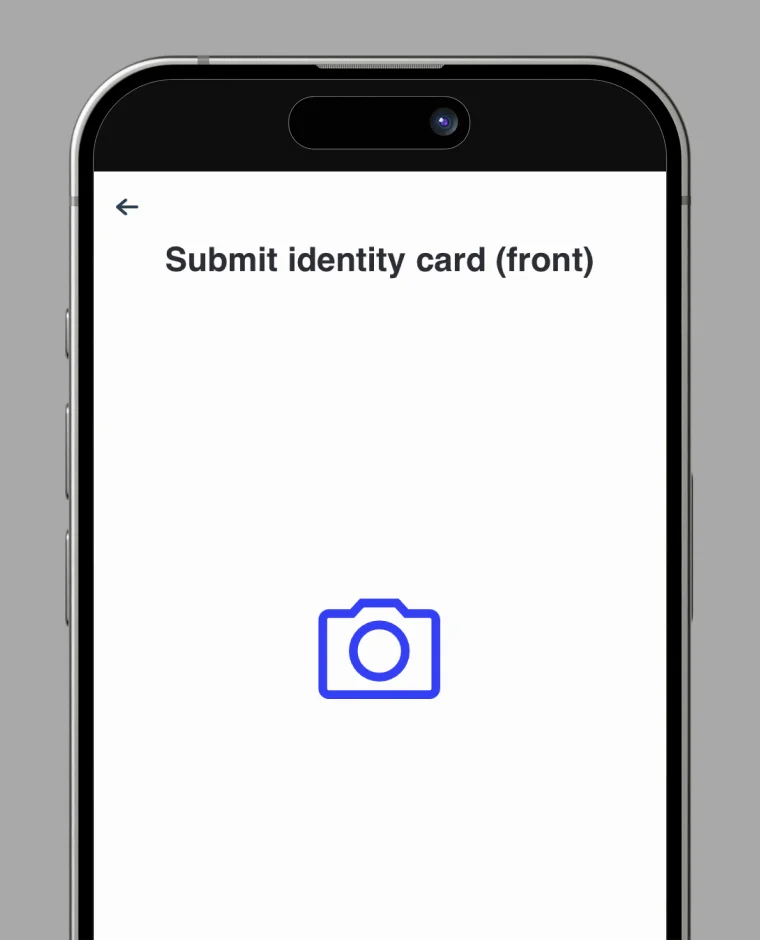
Tap "Start KYC", then in the new window select "Start Verification." Follow the prompts to take and upload a selfie and photos of your ID's front and back.
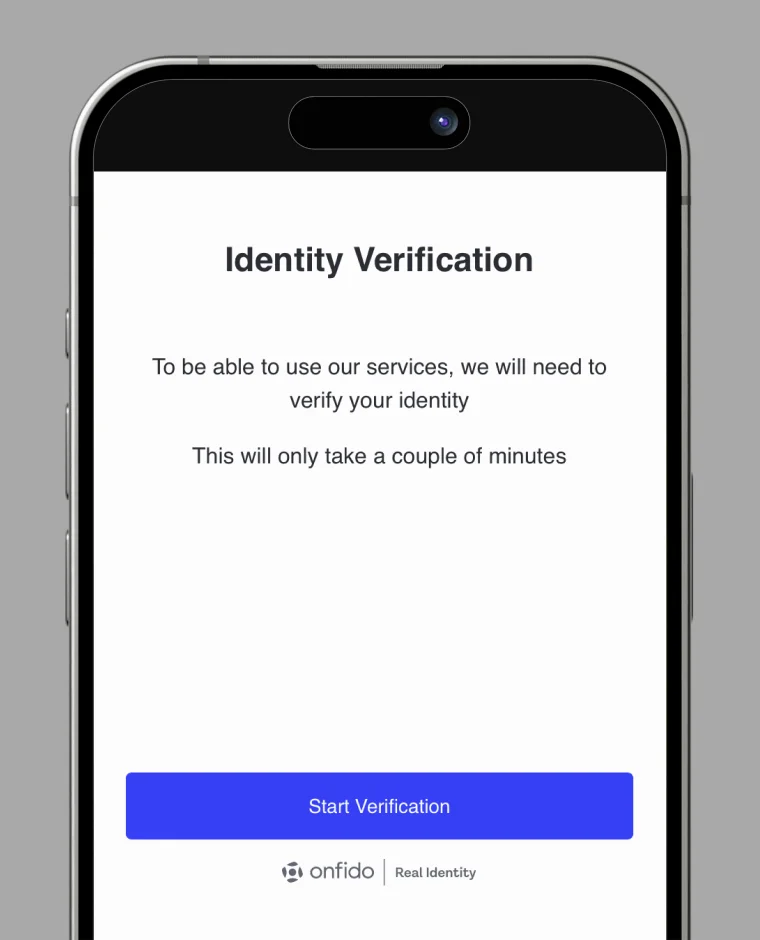
Be sure to select the same document type (e.g., passport, ID card, driver's license) that you entered during Step 1.

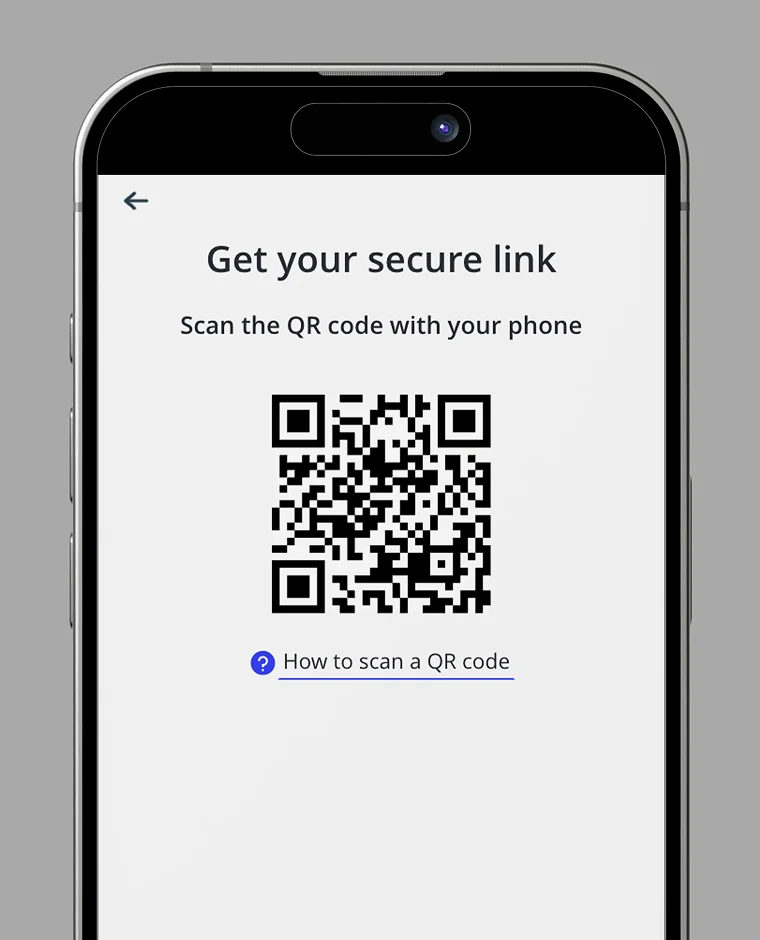
Scan the QR to KYC on phone
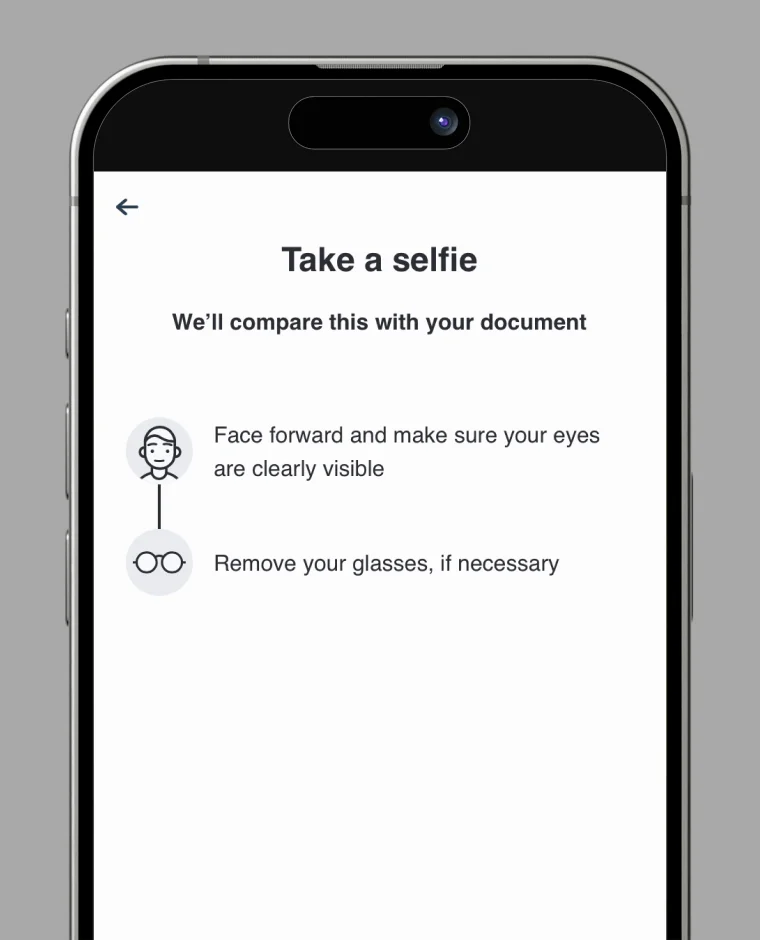
Take selfie and upload the ID
Passport is only front
ID will need front and back
Complete KYC
Card Issuance Fee Payment
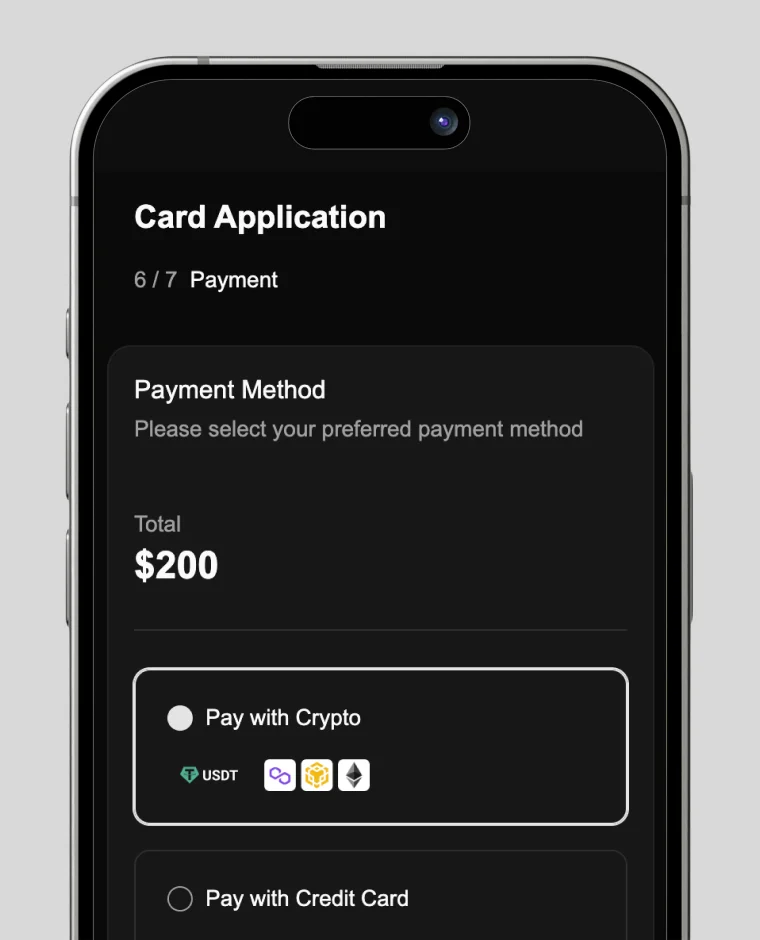
1. On the payment screen, check the box for "Pay with cryptocurrency."
On the payment screen, check the box for "Pay with cryptocurrency."
Tip: If you accidentally close the page, log back into your card account, go to "Apply New Card", and complete the payment process again.
2. Fill in the Required Payment Information
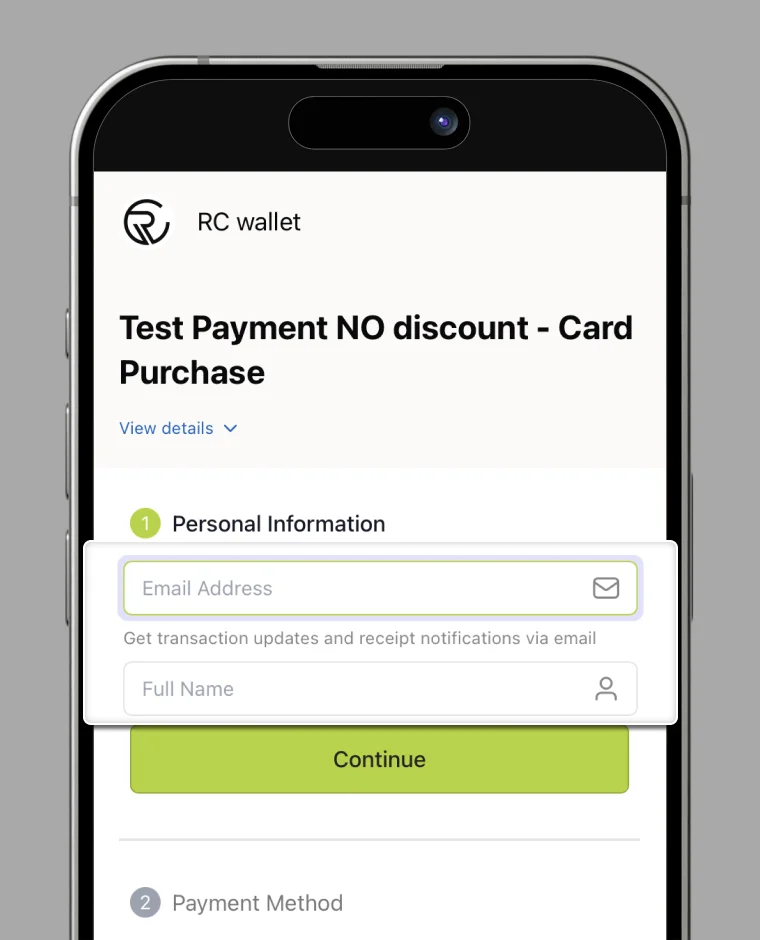
① Personal Information
- Email Address: Enter your active email address.
- You will receive the payment receipt and transaction updates here.
- Full Name: Enter your full name exactly as it appears on your card application.
After confirming your input, tap "Continue" to proceed to the ② step.
3. Select Your Payment Method
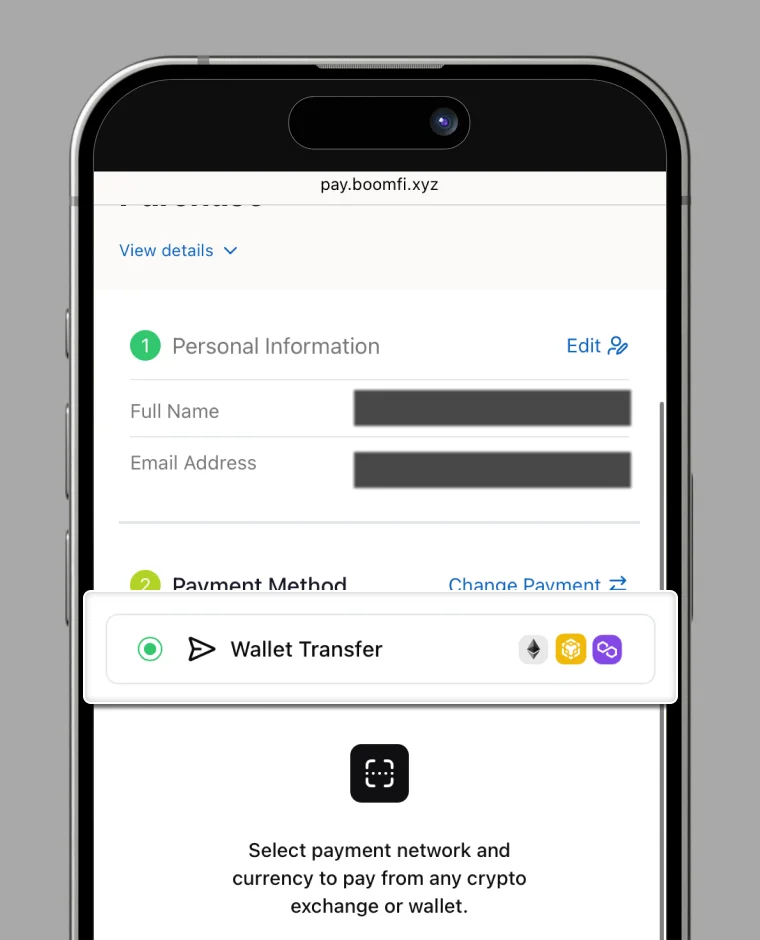
② Payment Method
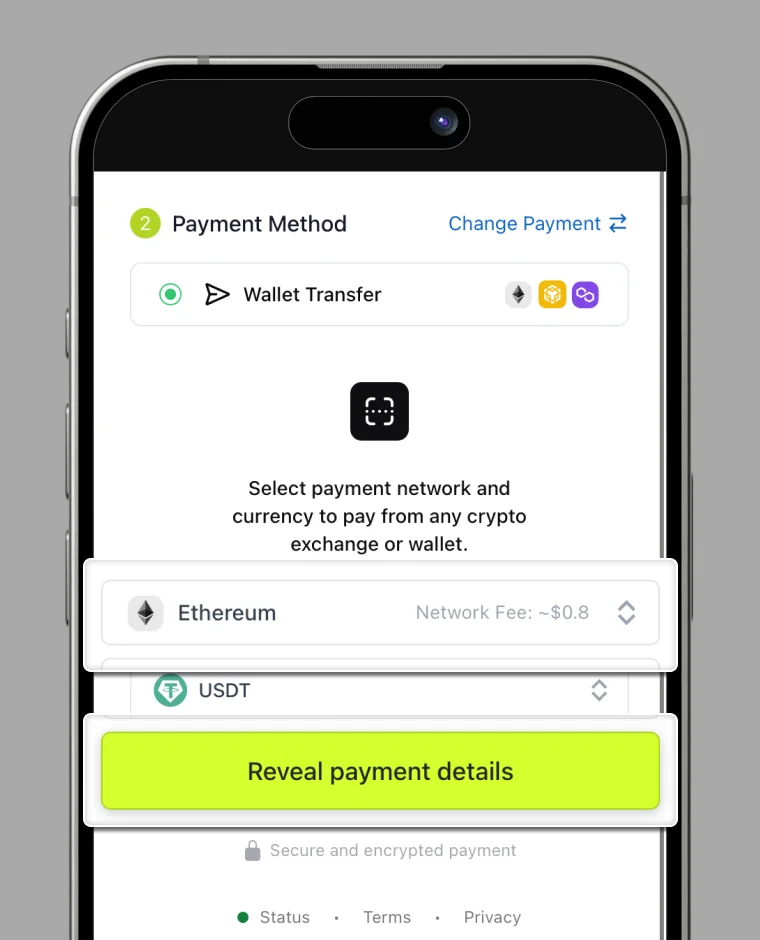
- Choose "Wallet Transfer" to pay from your existing RC Wallet balance.
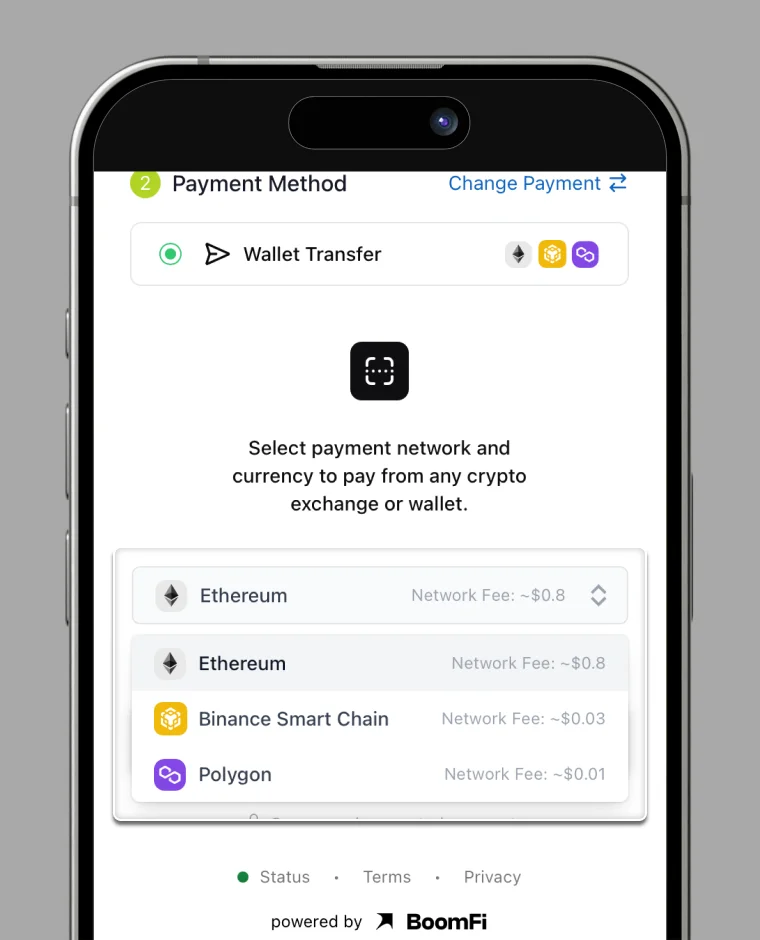
4. Select Your Network
② Payment Method
- Choose your preferred blockchain network (e.g., Ethereum, Polygon, BSC, etc.).
- A network fee will be added to the payment amount—this varies depending on network congestion.
Example: Select Ethereum, then tap "Reveal Payment Details" to view the next step.
5. Review Payment Details
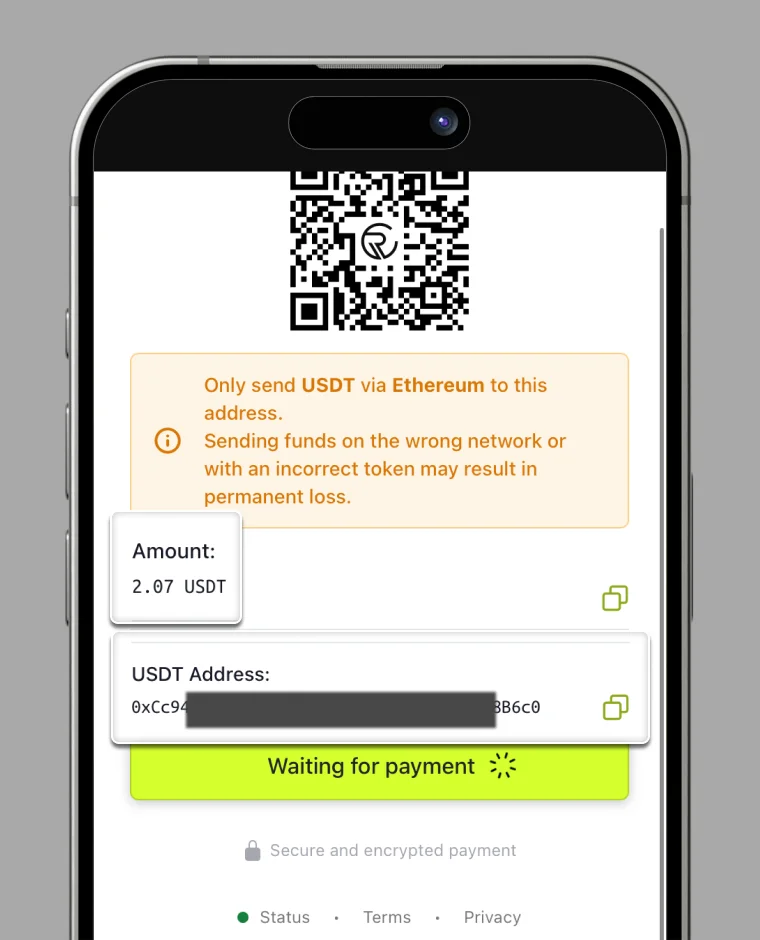
- Amount: Total amount including network fee.
- USDT Address: The BoomFi wallet address to which you will send the funds.
If copying info: Tap the copy icon next to the Amount and USDT Address to save them.
If sending immediately: Keep this screen open while you complete the transaction from RC Wallet.
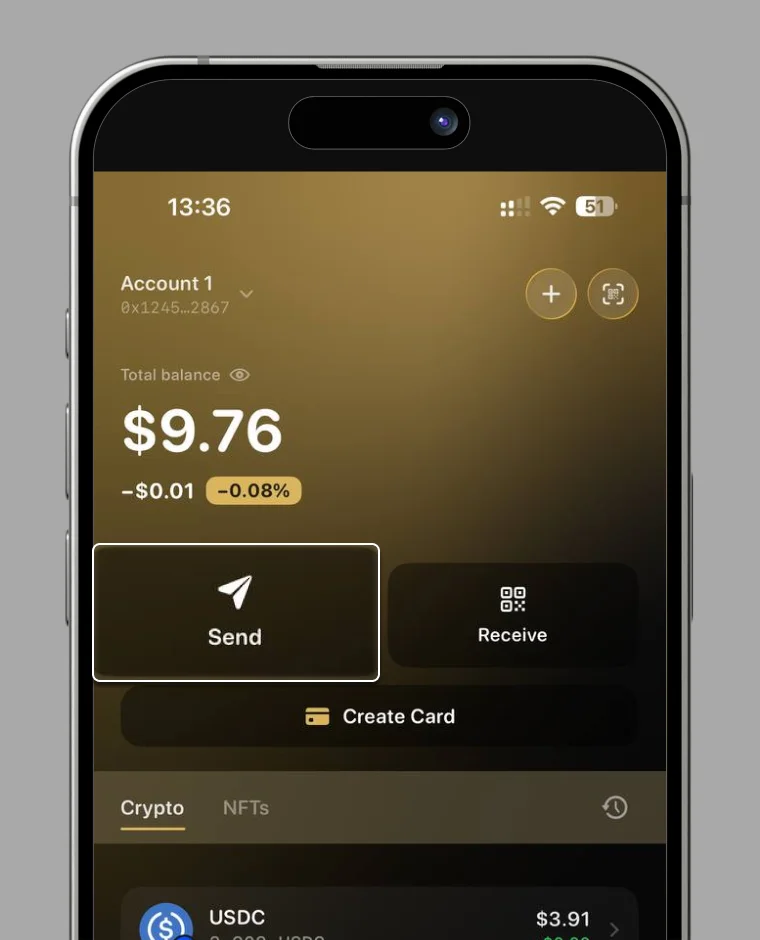
6. Send Funds from RC Wallet
Select "Send".
7. Select the USDT on the same network you chose for payment.
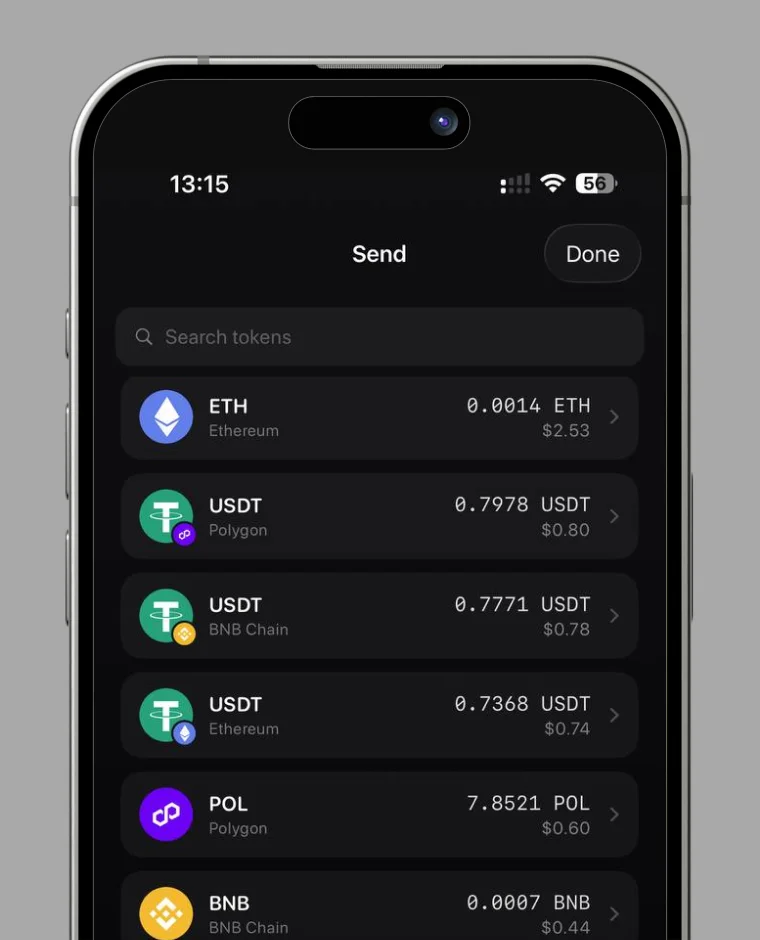
8. Paste the BoomFi USDT address you copied in the previous step and select "Review".
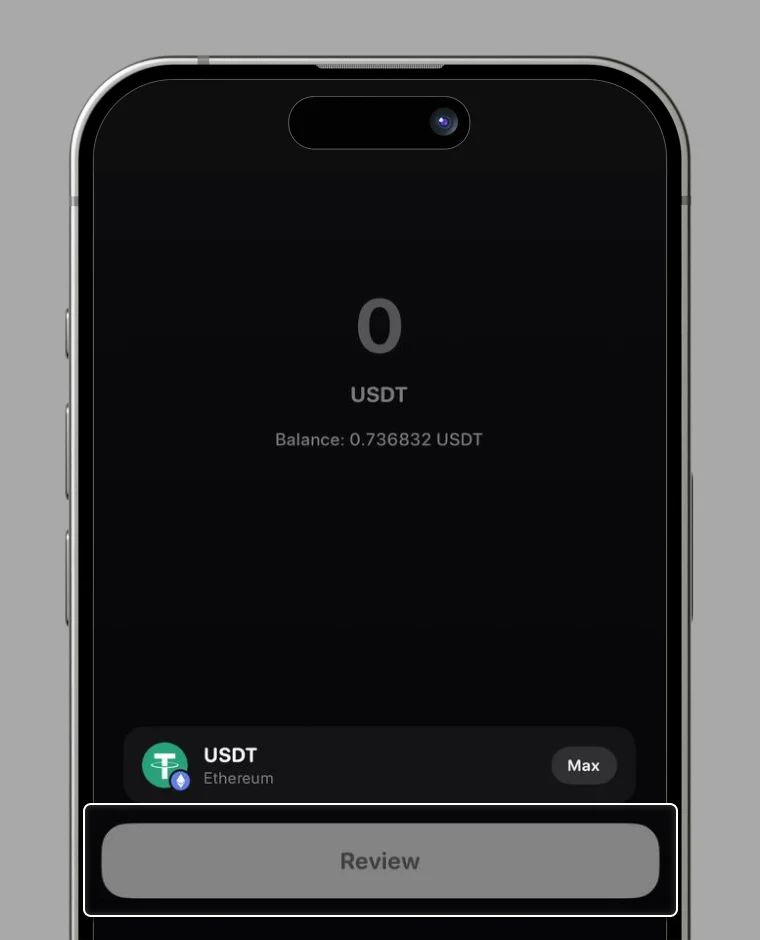
9. Paste the exact amount from the previous step and select "Approve".
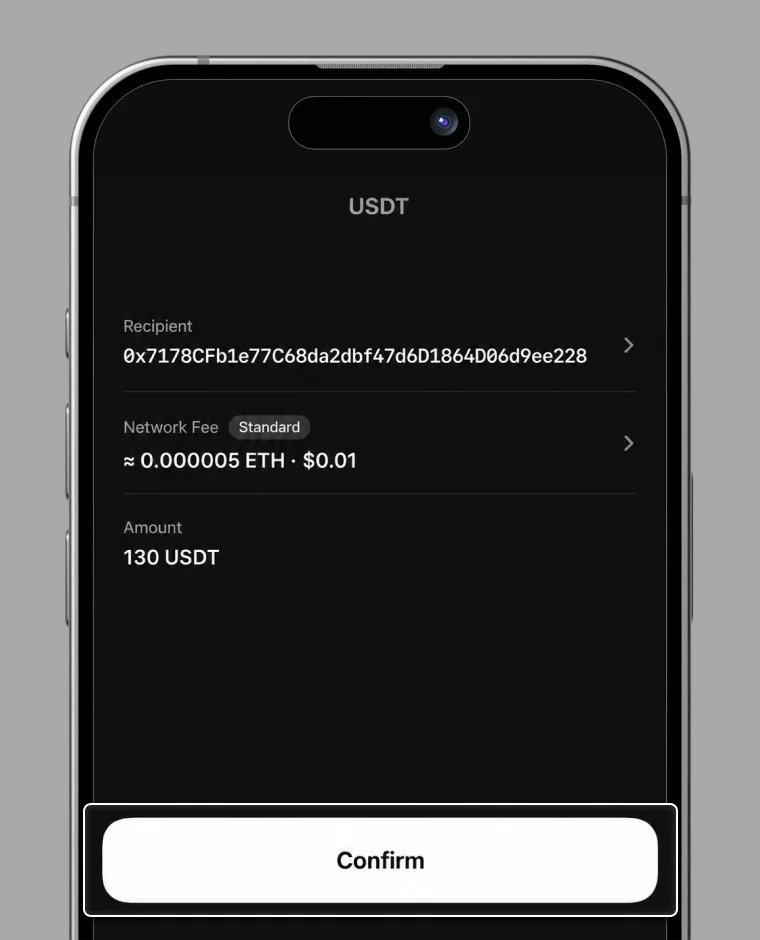
10. Your transfer is complete.
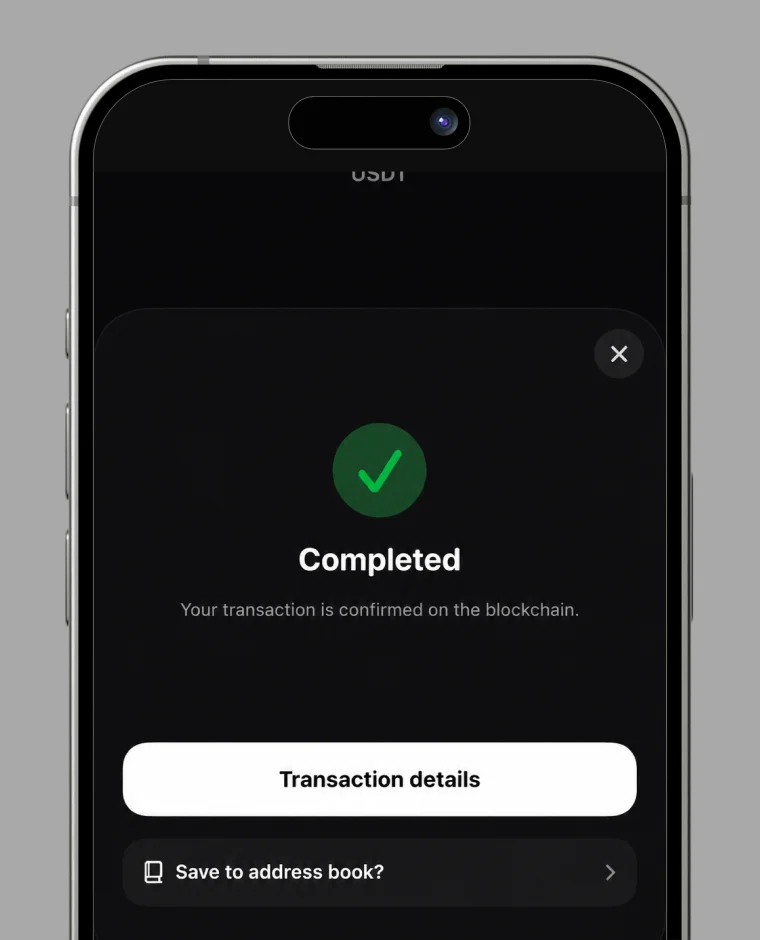
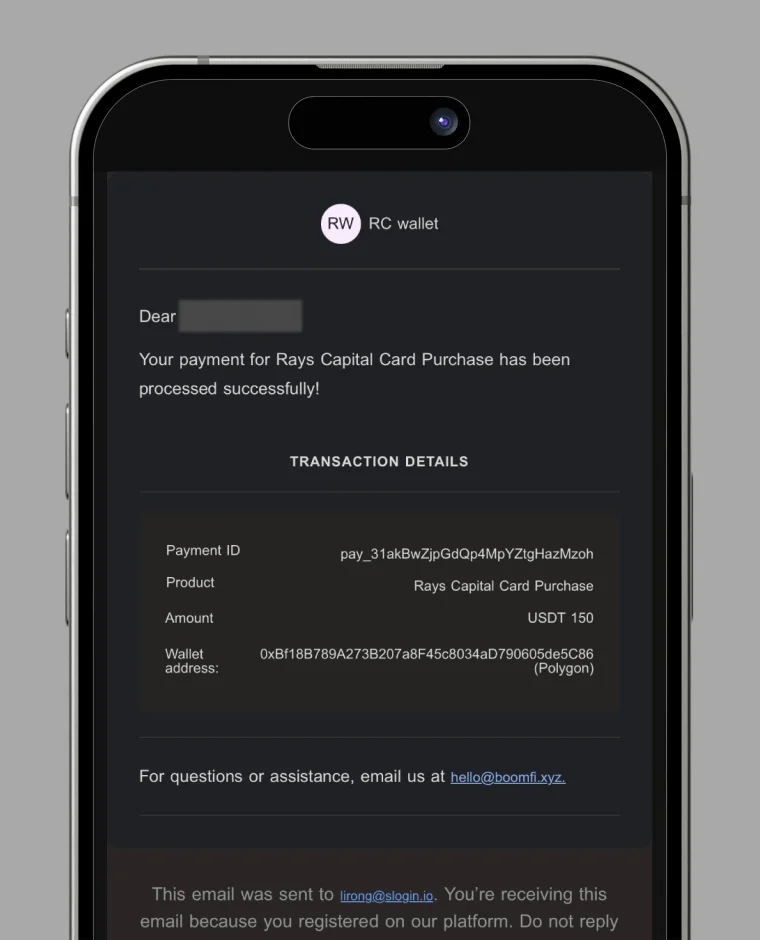
11. Email Confirmation from BoomFi
- You will receive a confirmation email from BoomFi.
- Sender: BoomFi
- Subject: RC Wallet Payment Succeeded
If you don't see the email in your inbox, check your Spam or Junk Mail folder.
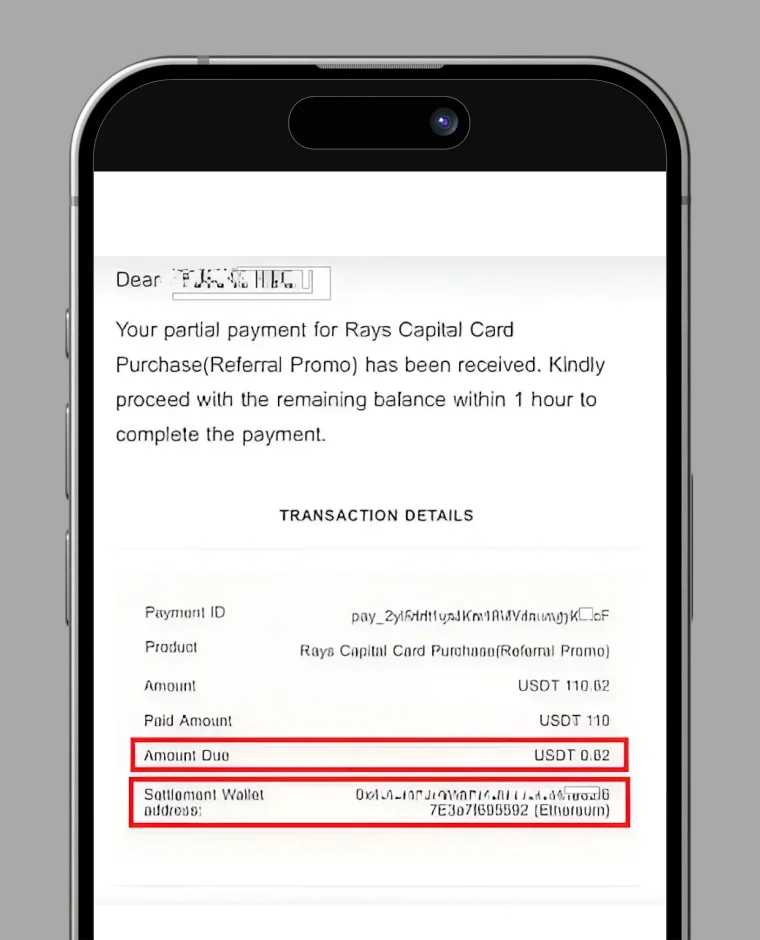
If the amount you sent is insufficient, you will receive another email from BoomFi.
- It will contain the outstanding amount (Amount Due) and the Settlement Wallet Address.
- Please send the remaining amount within 1 hour to complete your payment.