RC Wallet Security
Manage your PIN, mnemonic, and private keys, log out safely, and add or import wallets.
Steps
How to change your PIN code
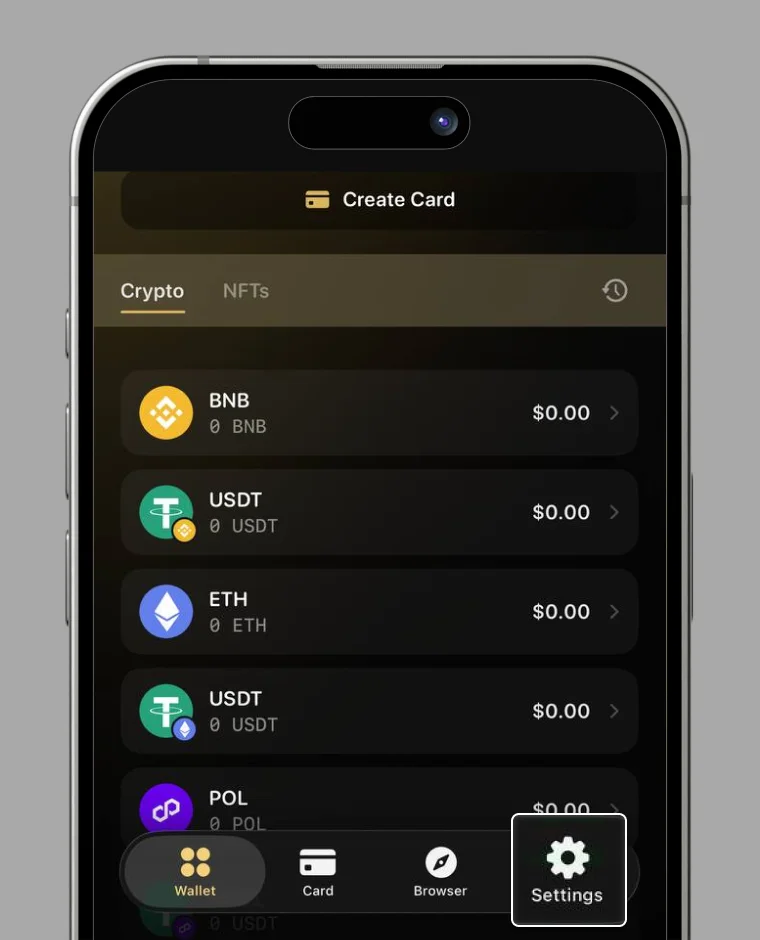
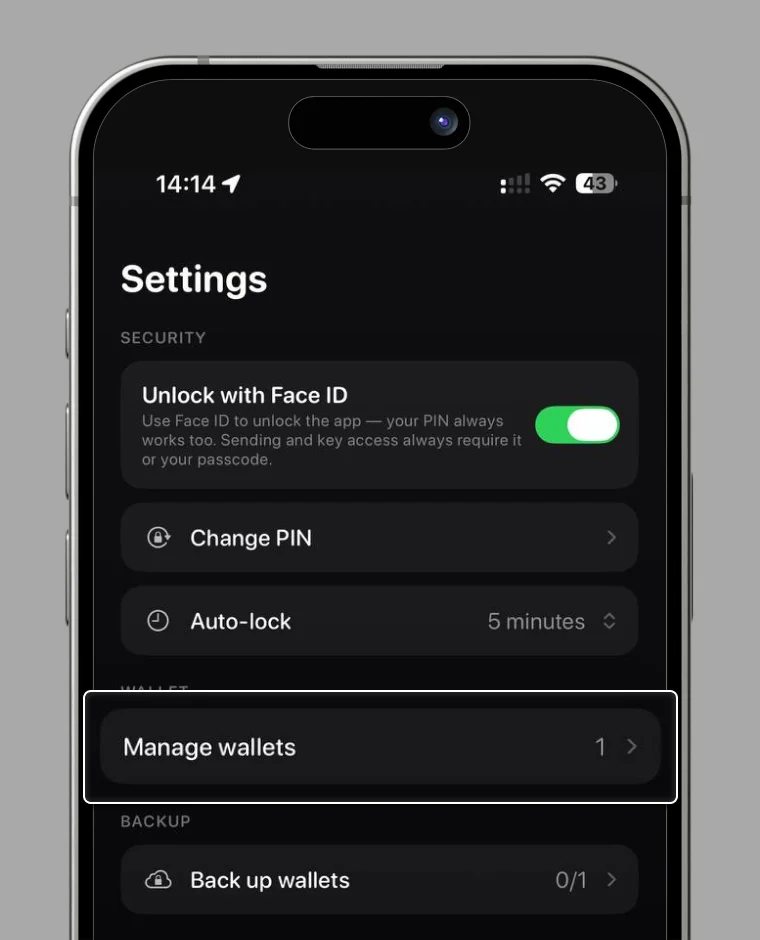
Tap the profile icon at the bottom right of the home screen

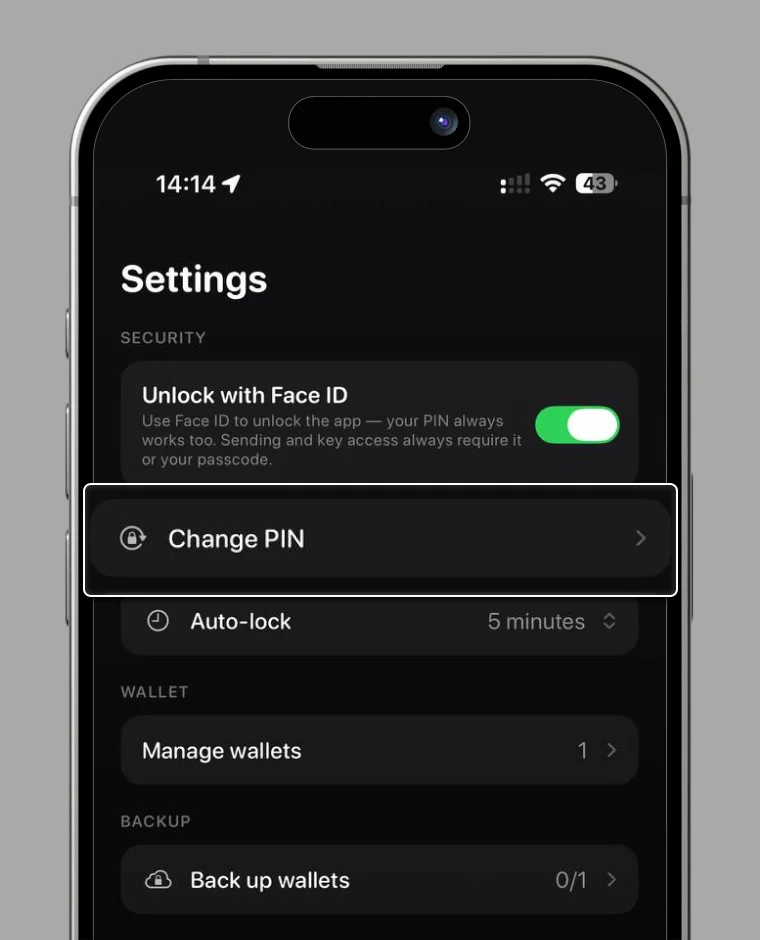
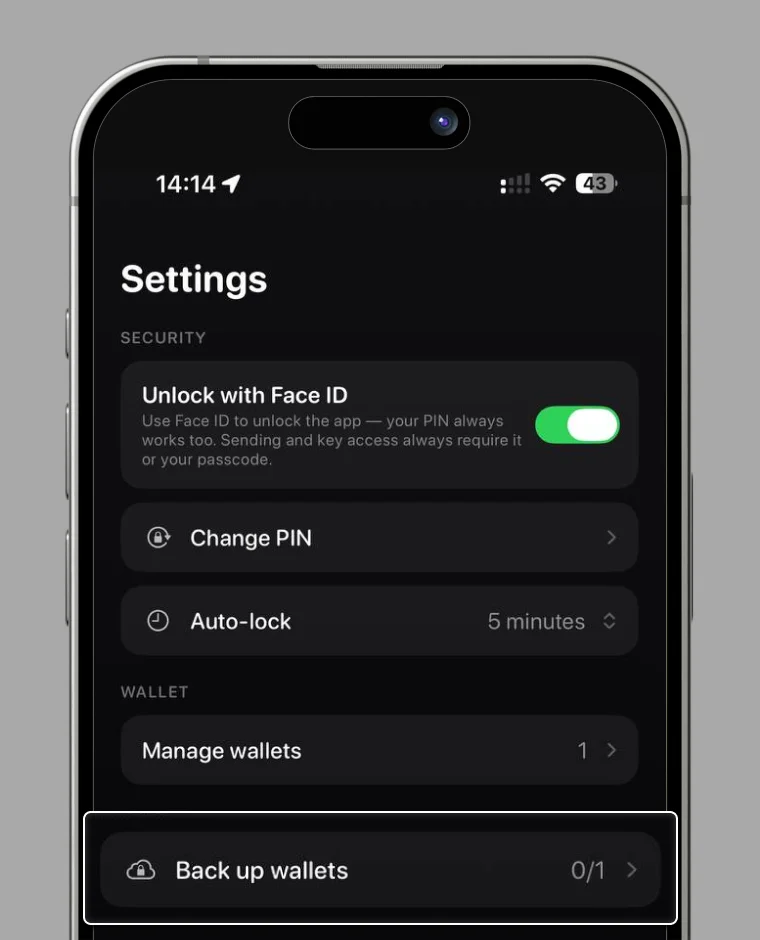
Select “Security”

Select “PIN-Code”

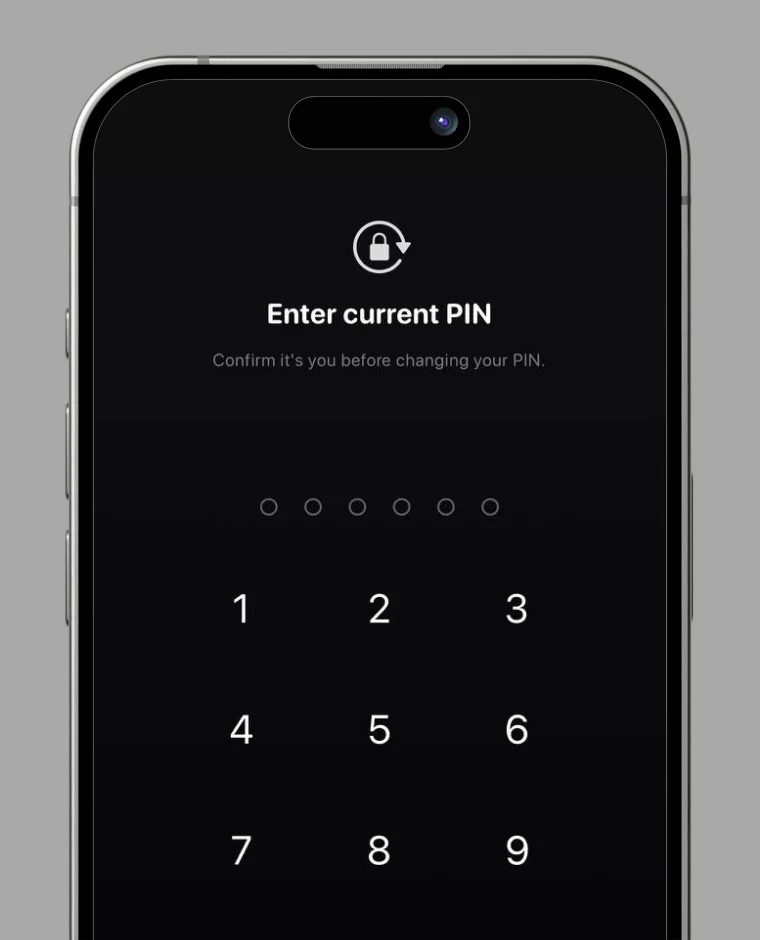
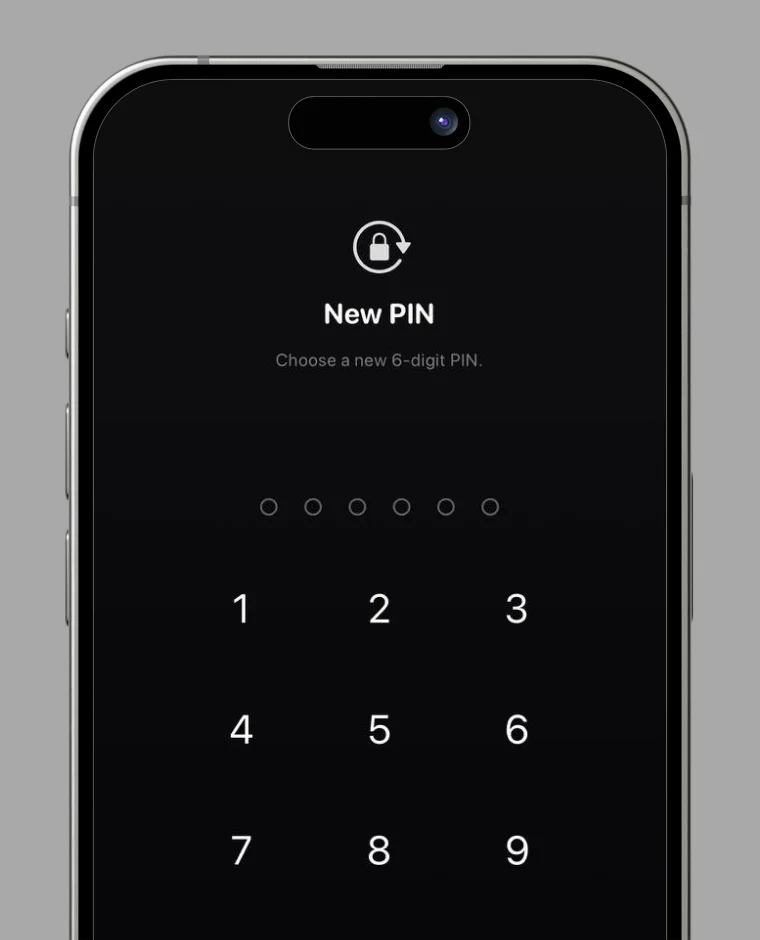
Enter your current PIN code, then enter the new PIN code twice

When the completion screen appears, the change is finished

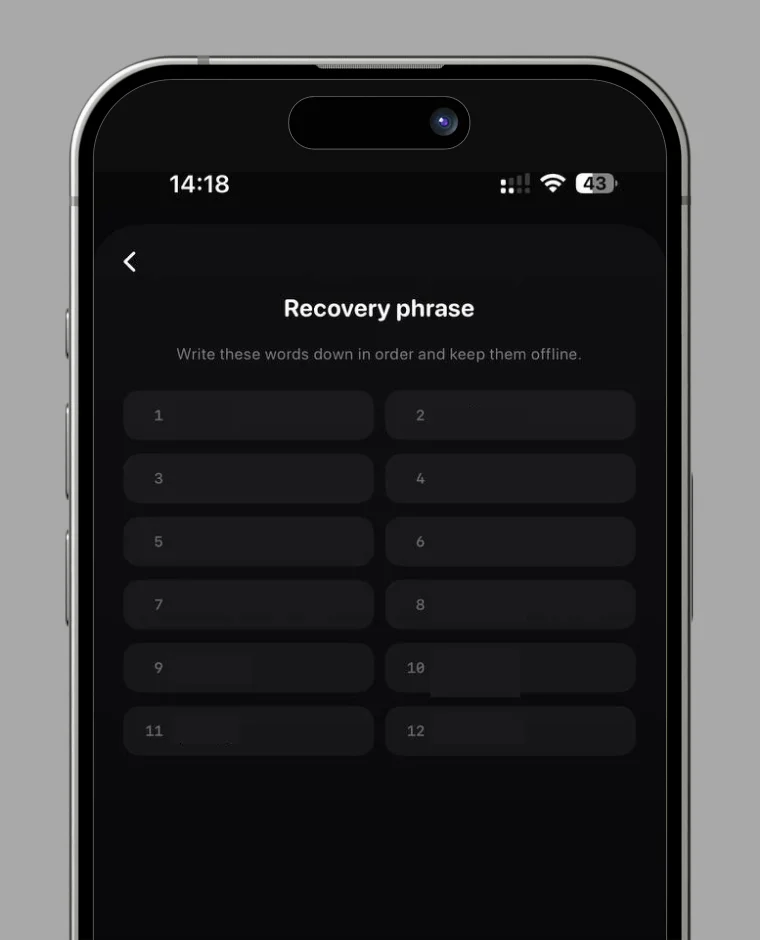
How to check your mnemonic
Tap the profile icon at the bottom right of the home screen

Tap “Security”

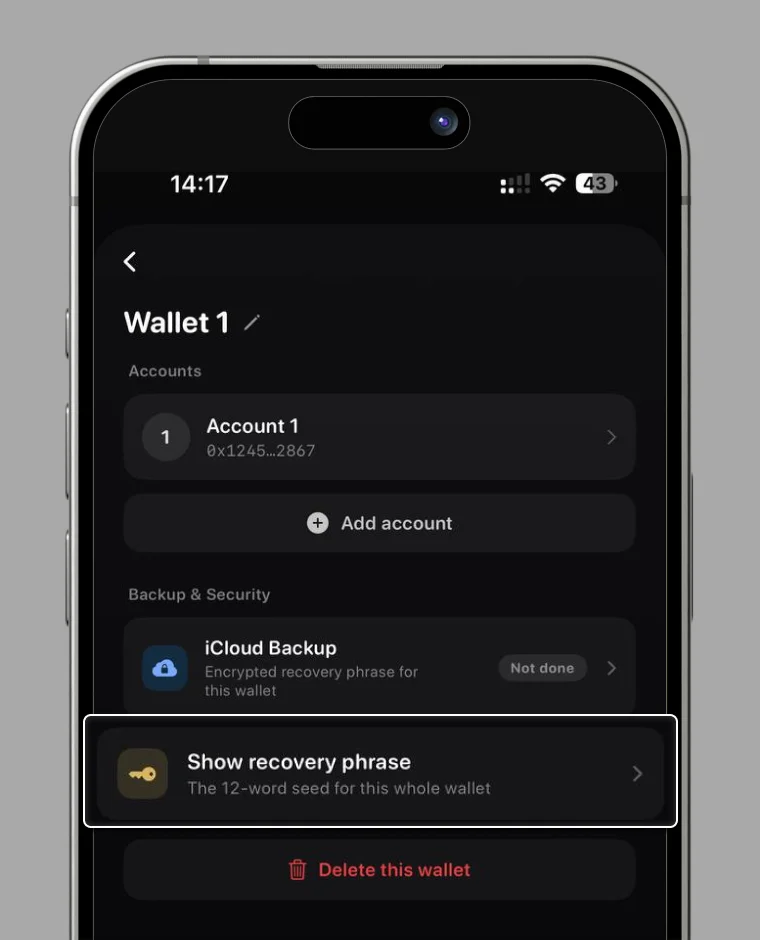
Select “Export mnemonic”

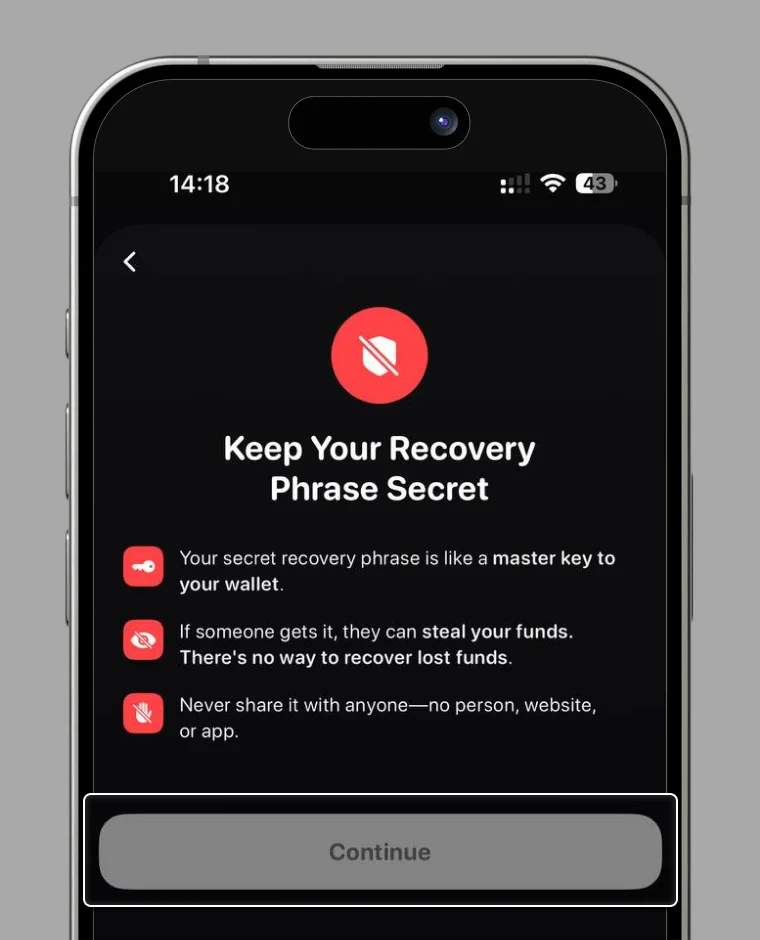
After reading the precautions, swipe to proceed.

Never share this screen with anyone

How to log out of RC Wallet
Tap the profile icon at the bottom right of the home screen

Tap “Security”

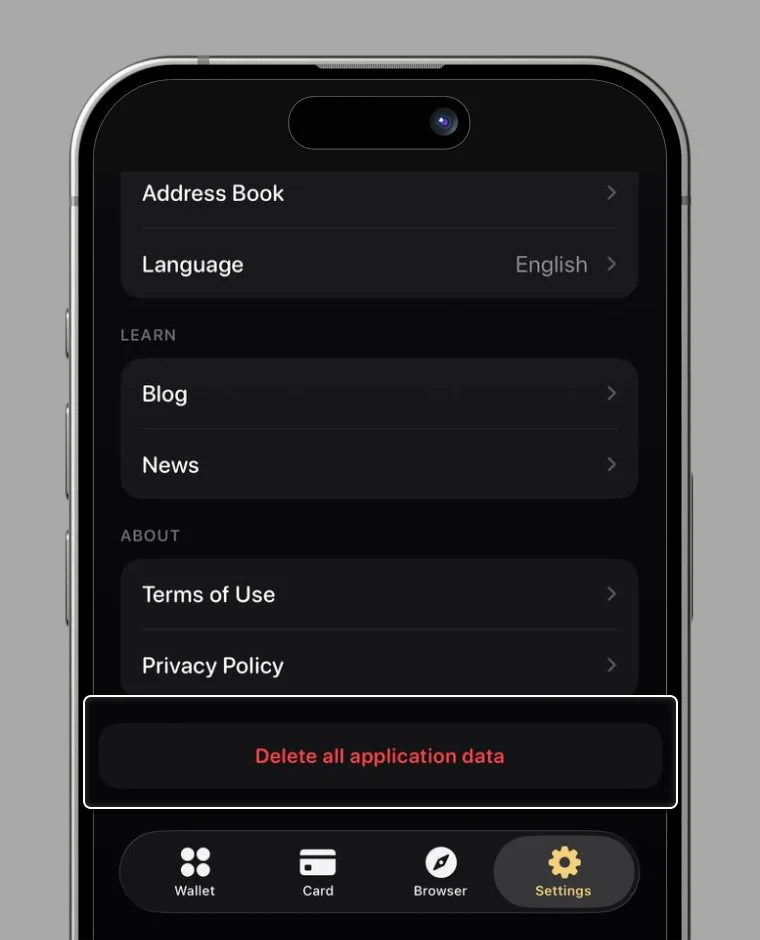
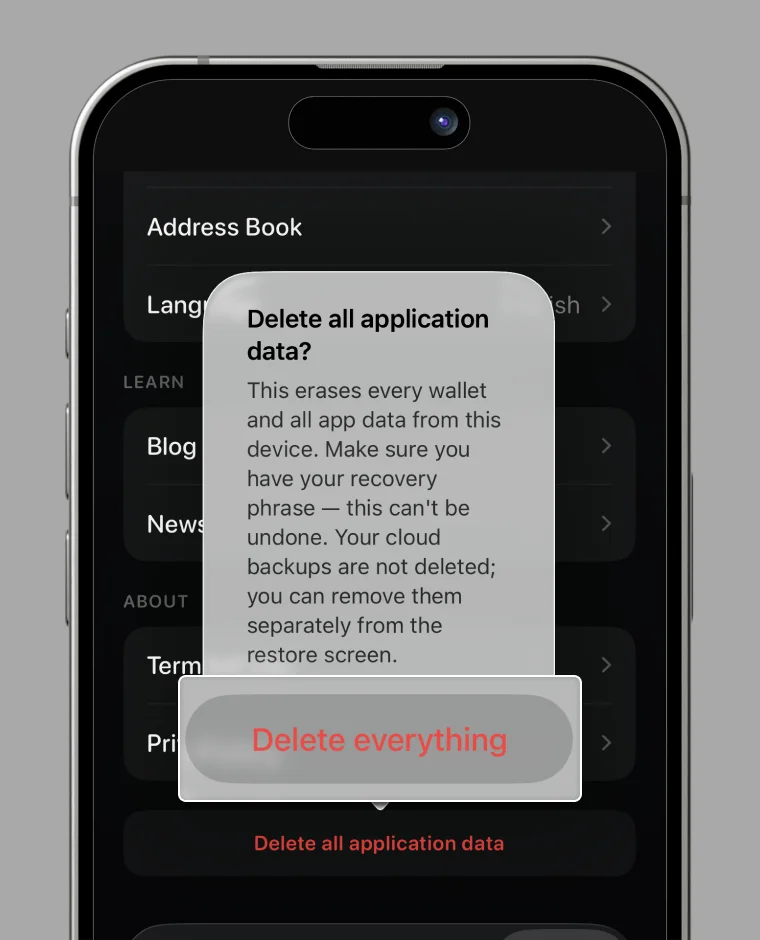
Select “Delete application data”

Logout is complete
For how to log in again, please refer to the login guide.

How to import a wallet
RC Wallet cannot import multiple different mnemonic (seed) phrases.
If you are currently logged in, please log out first, then follow the import steps.
Select “Add existing wallet”

Enter your mnemonic (12 English words) and tap “Import”

Please enter the words in English. Use single-byte spaces between each word only.
Set a wallet name
You can change the name at any time from settings. Choose any name you like.

Set your PIN code

How to add a second wallet
Open the Wallet options

Select “Add wallet”

Set a name

Your second wallet has been created
The mnemonic phrase is the same as for your first wallet.

How to view your private key
Open the Wallet options

Select “Wallet management”

Select “Export private key”

Review the warning and swipe

Never share this screen with anyone
Your private key looks similar to a wallet address. Be careful not to share it with others by mistake.